Alerts & webhooks
TickMint has one alert pipeline. Alerts come from MintScript indicators and built-in features. Each alert is shown locally on this device and can also be sent to external channels by the gateway.
When an alert fires:
- The window’s alert service shows it locally as a toast, sound or desktop notification, and adds it to the header bell and the Alerts dock tab.
- It forwards the alert to the gateway over the local WebSocket.
- The gateway saves it to the alert log (kept for 30 days) and delivers it to your enabled channels: Discord, Slack, Telegram, Email or Webhook.
The alert bell and the Alerts tab
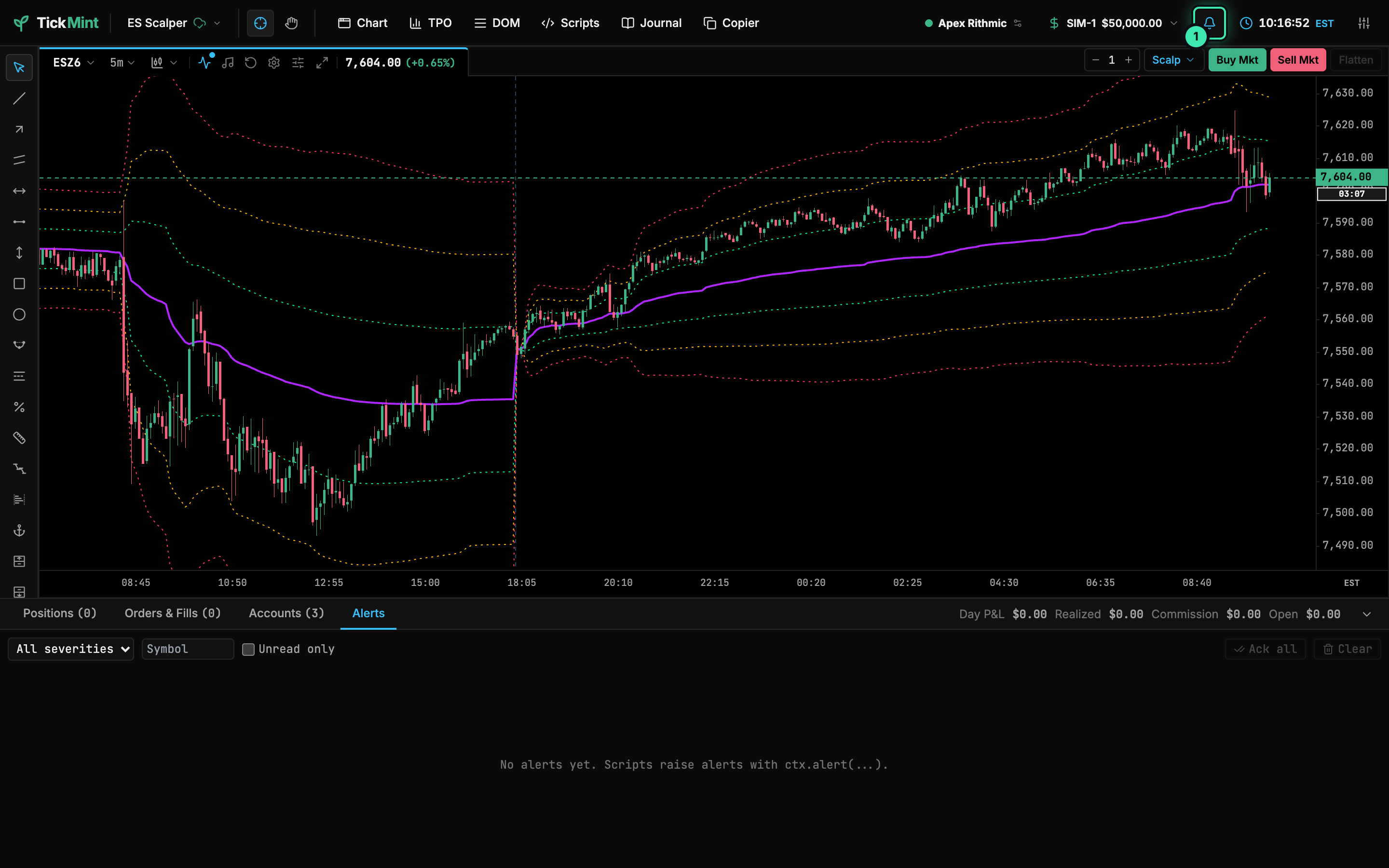
- Alert bell: click to open the Alerts dock tab; right-click to mute this device
| Action | Result |
|---|---|
| Click the bell | Opens the ALERTS tab of the trading dock. |
| Right-click, or Alt+click | Mutes or unmutes local notifications on this device. The icon changes to a crossed-out bell. External channels keep delivering. |
The ALERTS dock tab lists alert history: the gateway log merged with this window’s alerts. Its columns are Time, Source, Symbol, Message, Price and Channels. In the tab you can:
- Filter by severity (All severities / Info / Warning / Critical), by symbol, or with Unread only.
- See each channel’s delivery status as ✓ or ✗. Hover a ✗ to see the error.
- Acknowledge one alert, or all of them with Ack all.
- Empty the history with Clear.
- Mute or unmute a source for the current session.
With no history, the tab reads “No alerts yet. Scripts raise alerts with ctx.alert(...)”.
Configure local notifications
Open Workstation settings (the sliders icon on the right of the header) and select the Alerts tab.
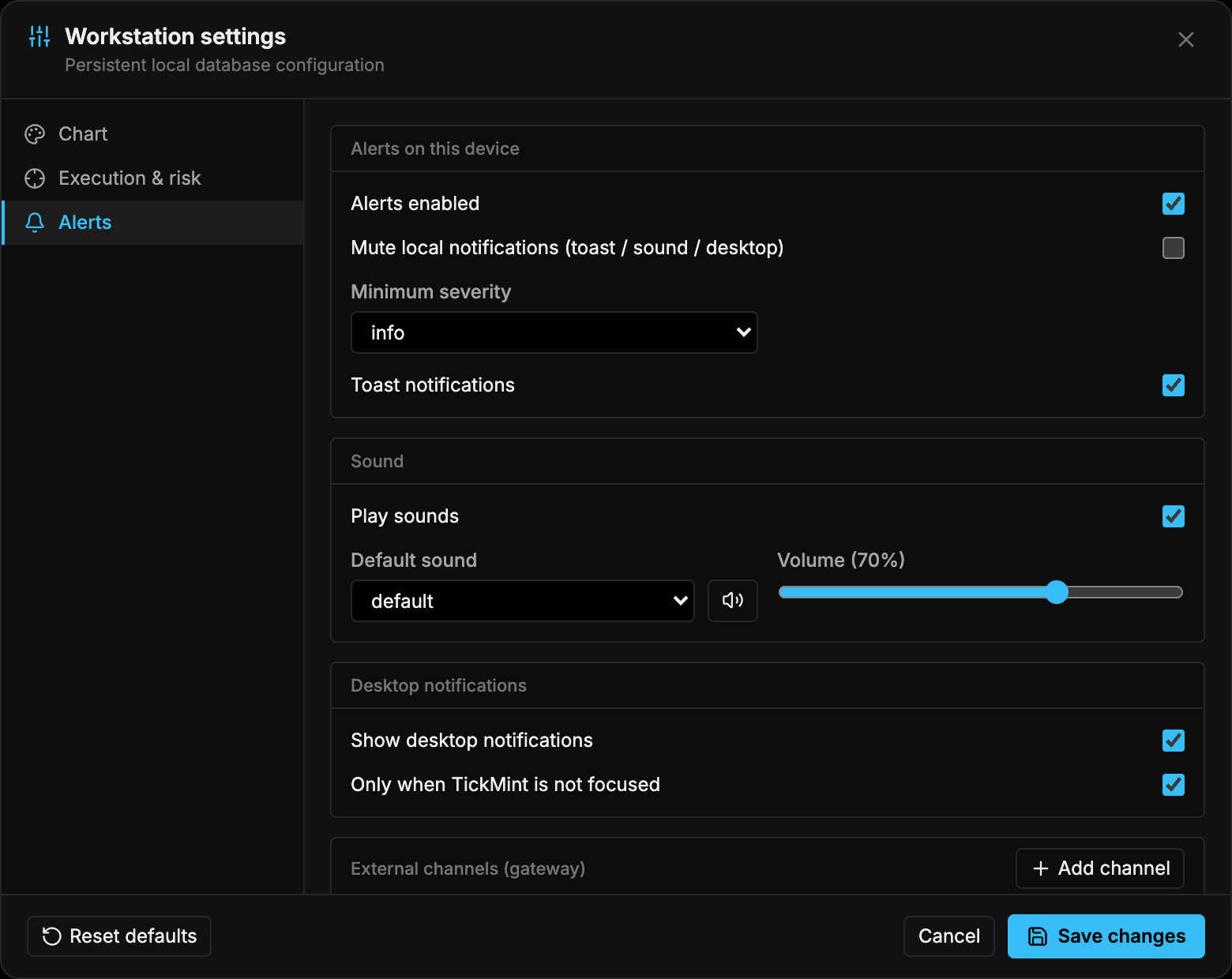
| Section | Setting | Default |
|---|---|---|
| Alerts on this device | Alerts enabled | On |
| Mute local notifications (toast / sound / desktop) | Off | |
Minimum severity (info, warning, critical) |
info |
|
| Toast notifications | On | |
| Sound | Play sounds | On |
Default sound (default, chime, bell, alarm, up, down, none) with a preview button |
default |
|
| Volume | 70% | |
| Desktop notifications | Show desktop notifications | On |
| Only when TickMint is not focused | On |
Device preferences are stored only in this window’s local storage. They aren’t synced, so a laptop can stay silent while your desktop plays sounds. In the desktop app, clicking a desktop notification focuses TickMint and opens the Alerts tab. In a browser, notifications work only after you grant permission. If you’ve blocked them, the tab shows “Browser notifications are blocked for this site.”
Add an external channel
External channels live on the gateway and are shared by every window.
- In Settings → Alerts, scroll to External channels (gateway) and click Add channel.
- Enter a Name (used in indicator settings), for example
my-discord, and choose the Type. - Set the Minimum severity, and leave Enabled on.
- Fill in the type-specific fields from the table below, then click Save channel.
- Click Test on the channel row to send one test message right away. Test works even when the channel is disabled.
- Tick the checkbox on the left of a row to make that channel a default. Defaults are used by alerts that don’t choose channels themselves.
| Type | Fields | How to get them |
|---|---|---|
discord |
Discord webhook URL | In Discord, go to Server settings → Integrations → Webhooks → New webhook → Copy URL. TickMint disables mentions. |
slack |
Slack incoming webhook URL | Create a Slack app → Incoming Webhooks → Add to workspace. |
telegram |
Bot token, Chat id | Create a bot with @BotFather (/newbot) to get the token. Send the bot a message, or add it to a group, then open https://api.telegram.org/bot<token>/getUpdates and copy chat.id. |
email |
SMTP host, Port, TLS (port 465), User, Password, From, To (comma-separated) | Use your mail provider’s SMTP settings. For Gmail or Outlook, use an app password. |
webhook |
URL (https), HMAC secret (optional) | Any HTTPS endpoint, such as your own server or an automation tool. |
Secrets are encrypted at rest and masked (••••••••) whenever they’re shown. These include webhook URLs and secrets, Discord and Slack URLs, the Telegram bot token and the SMTP password. When you edit a channel, masked fields keep their stored values unless you type new ones.
Route an indicator’s alerts to channels
In an indicator’s settings, the Alerts section lists each alert the script declares. For each one you can set enabled, frequency, sound, message and channels. Enter channels as a comma-separated list of channel names from Settings → Alerts. Leave the field empty to use the default channels. A 🔔 appears in the chart legend when an instance has alerts enabled.
Webhook payload
The webhook type sends a POST with Content-Type: application/json. The body is the alert as JSON:
{ "alertId": "4b0c…", "dedupeKey": "…", "source": { "kind": "script", "id": "tm_example_ema_cross_alerts", "name": "Example: EMA Cross Alerts" }, "key": "crossUp", "symbol": "NQZ6", "timeframe": "5m", "message": "NQZ6 EMA cross UP at 21012.25", "severity": "warning", "sound": "up", "price": 21012.25, "barTime": 1793750400000, "firedAt": 1793750700123, "channels": ["ch_…"], "data": { "fast": 21010.1, "slow": 21008.7 }}data holds whatever the script passed to ctx.alert(…, { data }).
Verify the HMAC signature
When the channel has an HMAC secret, every request includes this header:
X-TickMint-Signature: sha256=<hex HMAC-SHA256(secret, raw request body)>The gateway signs the exact JSON string it sends (UTF-8). Compute the HMAC over the raw body, before any JSON parsing, and compare the two values in constant time.
import crypto from 'node:crypto';import express from 'express';
const SECRET = process.env.TICKMINT_WEBHOOK_SECRET;const app = express();
function verify(rawBody, header, secret) {  const expected = 'sha256=' + crypto.createHmac('sha256', secret).update(rawBody, 'utf8').digest('hex');  return !!header && header.length === expected.length &&    crypto.timingSafeEqual(Buffer.from(header), Buffer.from(expected));}
app.post('/tickmint', express.raw({ type: 'application/json' }), (req, res) => {  const raw = req.body.toString('utf8');  if (!verify(raw, req.get('X-TickMint-Signature'), SECRET)) return res.sendStatus(401);  const alert = JSON.parse(raw);  console.log(alert.severity, alert.message);  res.sendStatus(204);});
app.listen(3001);
import hashlib, hmac, osfrom flask import Flask, request, abort
SECRET = os.environ["TICKMINT_WEBHOOK_SECRET"].encode()app = Flask(__name__)
@app.post("/tickmint")def tickmint(): raw = request.get_data() # raw bytes, before JSON parsing expected = "sha256=" + hmac.new(SECRET, raw, hashlib.sha256).hexdigest() if not hmac.compare_digest(expected, request.headers.get("X-TickMint-Signature", "")): abort(401) alert = request.get_json() print(alert["severity"], alert["message"]) return "", 204Your endpoint should respond with a 2xx status. Network errors, timeouts, 429 and 5xx responses are retried up to 3 attempts in total, with 1 s and 4 s backoff. Retry-After is honoured for waits up to 60 s.
Limits and retention
| Item | Value |
|---|---|
| Alerts per script instance | 30 per minute |
| External sends per channel | 20 per minute. After that you get one “N alerts suppressed” summary. |
| Message length | 500 characters |
data payload |
2048 bytes of JSON |
| Channels per alert / configured channels | 16 / 50 |
| Offline queue (gateway unreachable) | 100 alerts per window, sent on reconnect |
| Stale alerts | Alerts older than 5 minutes are logged but not sent externally. |
| De-duplication window | 10 minutes. The same indicator on two panels fires once. |
| Local log / gateway history | 500 entries / 30 days |