Trade Journal Overview
The Journal turns your fills into round-trip trades automatically, then lets you review, tag and analyse them. It reads everything from the local gateway database. Nothing is uploaded.
Open the journal
Click Journal in the header (“Open the Trade Journal”). It opens in its own window, TickMint Journal, which remembers its size and position. The journal refreshes from the gateway every 5 seconds while it’s open.
The sidebar has six views:
| View | Use it to |
|---|---|
| Dashboard | See headline stats, equity and today’s progress. |
| Trades | List, filter, bulk-edit and export trades. See Trades & review. |
| Calendar | See P&L by day and week. |
| Daily Journal | Write a plan, recap and lessons for each day. |
| Reports | Break performance down by time, instrument, setup and more. See Reports & export. |
| Settings | Manage setups, tags, mistakes, the trading day and commissions. |
The Unreviewed badge under the nav shows how many trades you haven’t reviewed yet. Click it to filter to those trades.
If the gateway isn’t reachable, a banner reads “Gateway unavailable: … Retrying…” and the journal reconnects on its own.
Where trades come from
| Source | Included |
|---|---|
| Rithmic fills on live accounts | Yes |
| SIM-1 fills | Yes, when SIM is ticked in the filter bar |
| REPLAY-1 fills | No, replay trades are never journaled |
A trade is one round trip, from flat to flat, per account and contract:
- Scaling in and out stays inside one trade.
- A reversal (for example long 2 → short 1) closes the trade and starts a new one.
- A trade is open while you hold a position, closed once you’re flat, and incomplete if the opening fills are missing (for example, history that started mid-position).
“Trades rebuild automatically from fills” (shown at the bottom of the sidebar). Your notes, ratings, tags and screenshots are kept when trades rebuild.
The filter bar
The filter bar at the top applies to every view.
| Control | Options |
|---|---|
| Range | Today, WTD, MTD, 30D, YTD, All, Custom |
| Accounts, Symbols, Tags, Mistakes | Multi-select, default All |
| Side | Long & short, Long, Short |
| Status | Any status, Closed, Open, Incomplete |
| Setup | Any setup, or one setup |
| SIM | Include SIM-1 trades |
| Hidden | Include trades you’ve hidden |
| Exclude copied | Leave out follower trades from the Trade Copier |
| Unreviewed | Only trades not yet marked reviewed |
| Net / Gross | Show P&L after or before commissions |
Reset returns to your defaults. Save as default stores the current filters as the defaults.
Dashboard
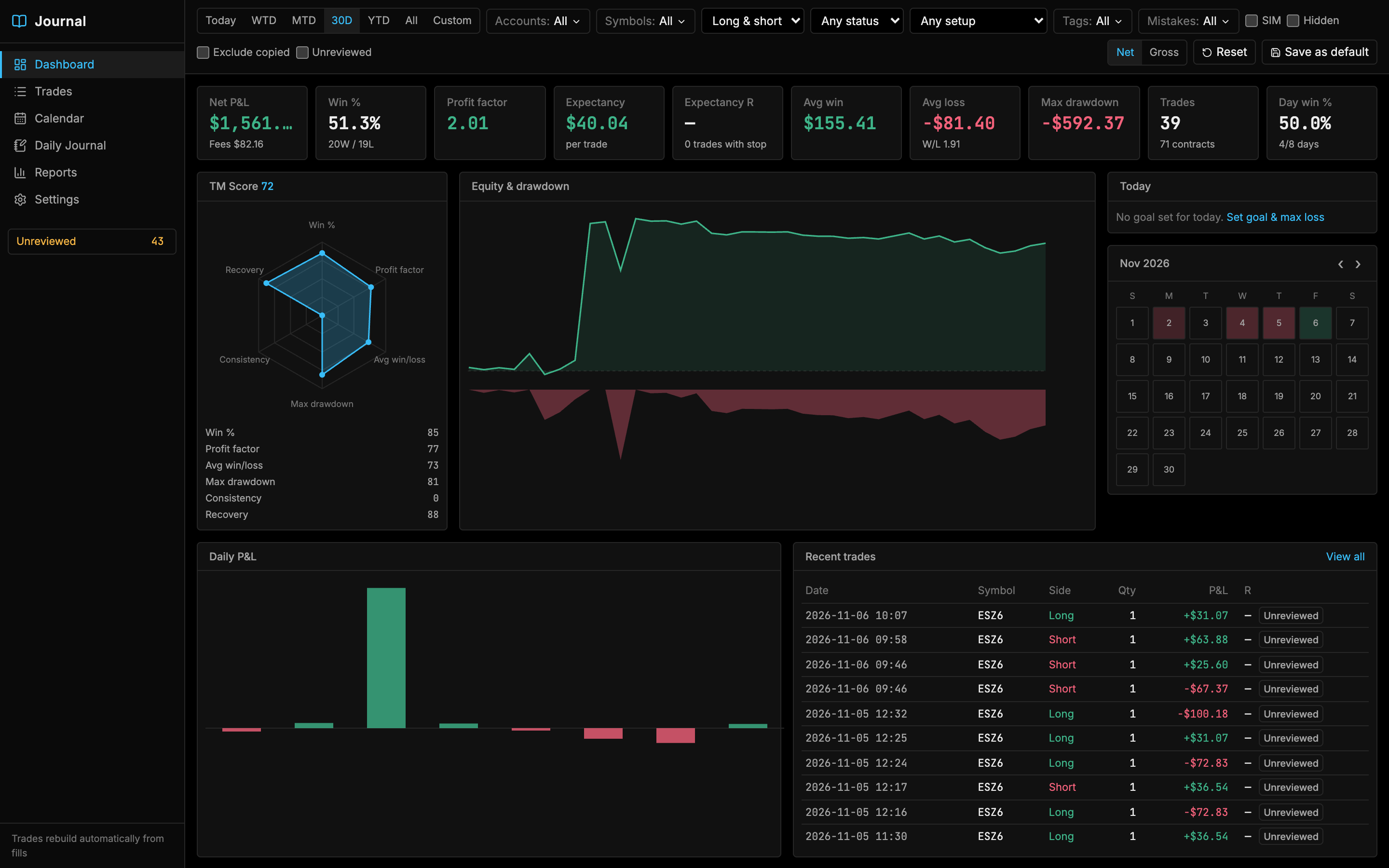
KPI cards: Net P&L (with fees), Win % (wins / losses), Profit factor, Expectancy per trade, Expectancy R (needs a planned stop), Avg win, Avg loss (with the win/loss ratio), Max drawdown, Trades (and contracts), and Day win %.
TM Score is a 0–100 summary of six components, each scored 0–100:
| Component | Weight |
|---|---|
| Profit factor | 25% |
| Avg win/loss | 20% |
| Max drawdown | 20% |
| Win % | 15% |
| Consistency | 10% |
| Recovery | 10% |
The other panels:
- Equity & drawdown: cumulative P&L above, drawdown below.
- Today: progress against your daily goal and max loss. It shows “Goal reached” or “Max loss hit — stop trading”. Use Set goal & max loss, or the Discipline panel in the Daily Journal, to set them.
- Mini calendar: green and red days for the month.
- Daily P&L: one bar per day.
- Recent trades: the latest trades. View all opens the Trades view.
Settings
Setups, tags and mistakes
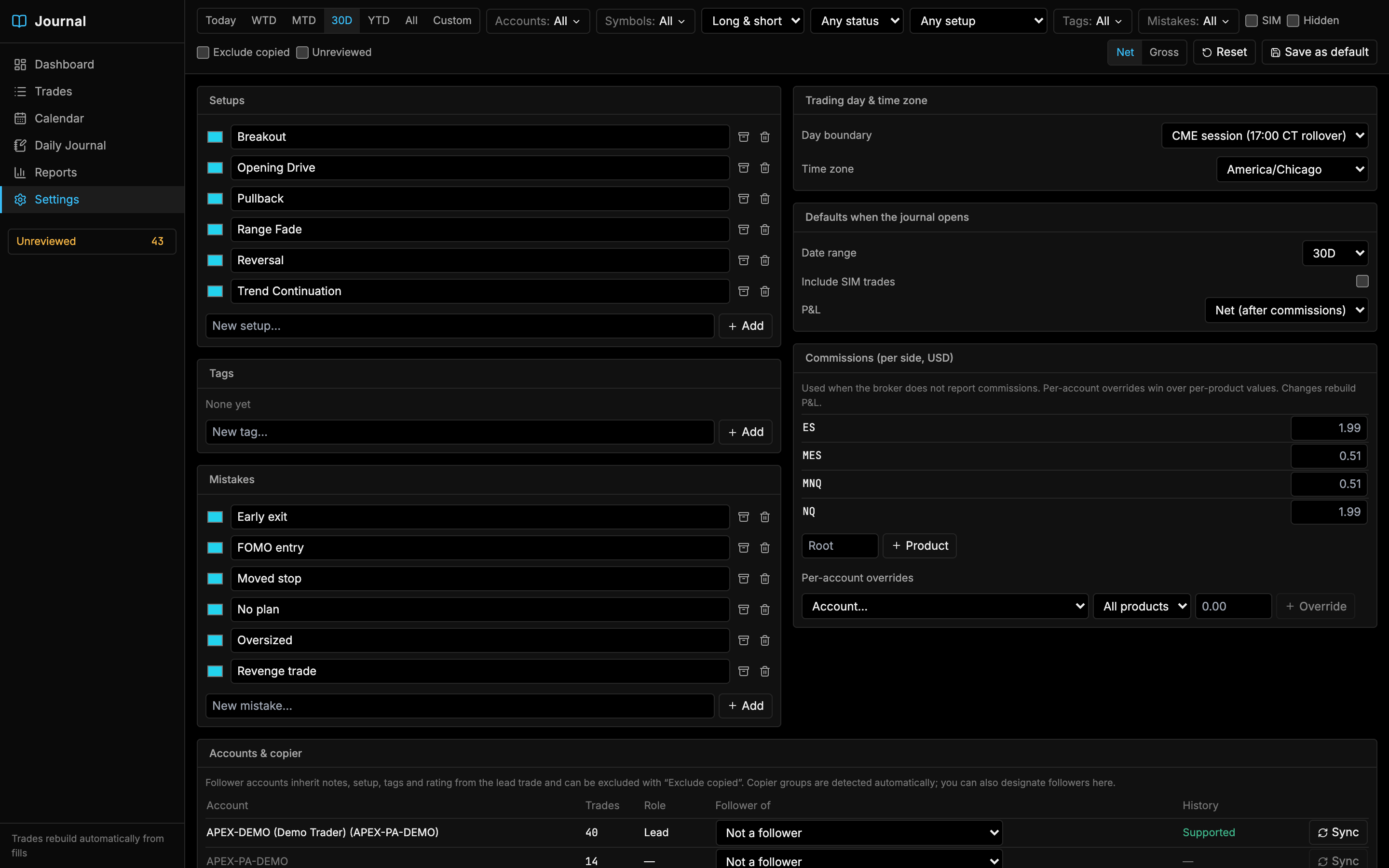
Add entries with Add, rename them in place and pick a colour. Archive hides an entry from pickers but keeps it on existing trades. Delete removes it from every trade.
New journals start with these:
| List | Starter entries |
|---|---|
| Setups | Breakout, Opening Drive, Pullback, Range Fade, Reversal, Trend Continuation |
| Mistakes | Early exit, FOMO entry, Moved stop, No plan, Oversized, Revenge trade |
| Tags | None |
Trading day and time zone
| Setting | Options | Default |
|---|---|---|
| Day boundary | CME session (17:00 CT rollover), or Calendar day | CME session |
| Time zone | Any IANA time zone | America/Chicago |
With the CME session boundary, a trade at 18:30 CT on Sunday counts toward Monday.
Defaults when the journal opens
Date range (default 30D), Include SIM trades (default off) and P&L Net or Gross (default Net, after commissions).
Commissions
Commission rates are per side, in USD, and are used when the broker doesn’t report commissions. Built-in rates are $0.51 for micros and $1.99 for other contracts.
- Add a rate for a product root with + Product.
- Override a rate for one account, or for one account and product, with + Override.
The most specific rate wins: account + product, then account (all products), then product, then the built-in rate.
Accounts & copier
Lists each account with its trade count, role (Lead or follower), Follower of, and whether Rithmic history is Supported. Follower accounts inherit the lead trade’s notes, setup, tags and rating. Copier groups are detected automatically, or you can set Follower of by hand.
Where journal data is stored
All journal data lives in tickmint.db in the TickMint data folder, and screenshots in its journal/attachments/ subfolder. See Local-first & privacy.