ATM Brackets
An ATM strategy is a bracket template. Orders you enter with an ATM active get the template’s take-profit targets and a shared stop loss, measured in ticks from your entry price. You choose the active ATM in the chart order bar, the Trade Panel or the DOM. Pick None (Brackets Disabled) to trade without brackets.
Open the editor
Click Configure next to the ATM selector in the Trade Panel, or the configure button beside the ATM selector in the DOM. The ATM Strategy Templates dialog opens.
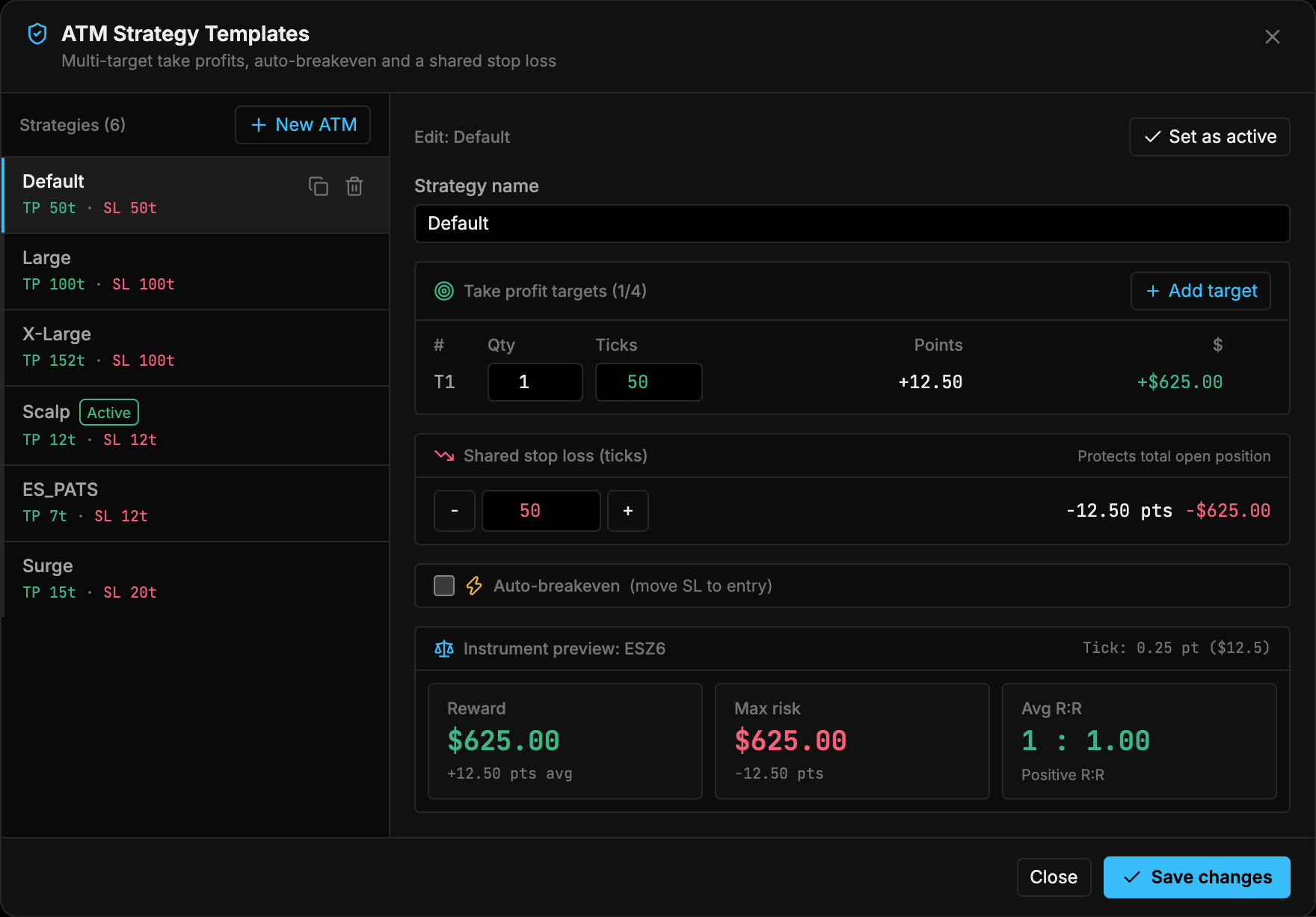
- New ATM: create a new strategy template.
- Add target: add another take-profit target (up to 4).
- Shared stop loss in ticks, with − / + buttons.
- Set as active: make the strategy you are editing the active ATM.
The list on the left shows each strategy as TP nt · SL nt (first target and stop, in ticks) and marks the active one. Use the icons on a strategy row to duplicate or delete it (deletion asks you to confirm).
Create a strategy
- Click New ATM (1) and type a Strategy name.
- Under Take profit targets, set the first target’s Qty and Ticks. Click Add target (2) for up to four targets. Points and dollar value update as you type.
- Set the Shared stop loss (ticks) (3). One stop protects the total open position.
- Optionally turn on Auto-breakeven.
- Click Set as active (4) if you want to use it now, then Save changes.
Templates are saved with your settings. A fresh install includes Default (TP 20 / SL 12 ticks), Scalp (10 / 10) and Runner (40 / 16). The templates in the screenshot (Default, Large, X-Large, Scalp, ES_PATS, Surge) are an example of a customized list.
Targets and quantity
The Qty of each target is a weight, not a fixed contract count. When an entry fills, TickMint splits the filled quantity across targets in proportion to those weights:
- With one target, the whole position goes to it.
- If the order is smaller than the number of targets, the earliest targets get one contract each and the rest get none.
- Otherwise every target gets at least one contract, and any rounding remainder goes to the last target (the runner).
For example, three targets weighted 1 : 1 : 1 on a 4-lot entry become 1, 1 and 2 contracts.
Auto-breakeven
Enable Auto-breakeven (move SL to entry) to move the shared stop to your entry price automatically.
| Setting | Options |
|---|---|
| Trigger condition | Target Fill (e.g. TP1 hit) or Profit Threshold (ticks) |
| Target selection | Which target’s fill triggers the move (Target Fill mode) |
| Profit trigger (ticks) | Open profit needed to trigger the move (Profit Threshold mode) |
| Offset ticks (profit lock) | Ticks beyond entry to place the stop; 0 is exact breakeven |
Instrument preview
The bottom of the editor previews the strategy on the current instrument, using its tick size and tick value. It shows Reward (average across targets), Max risk (the stop) and Avg R:R.