Workstation settings
Open Workstation settings with the sliders button at the right end of the header toolbar. The dialog has three tabs: Chart, Execution & risk and Alerts.
| Footer button | What it does |
|---|---|
| Reset defaults | Puts the fields back to their defaults |
| Cancel | Closes without saving |
| Save changes | Saves and applies your changes |
Chart and execution settings are saved in the local database. Alert settings are saved per device. Per-chart options such as candle colors, footprint and trading controls live in each panel’s own settings, not here.
Chart
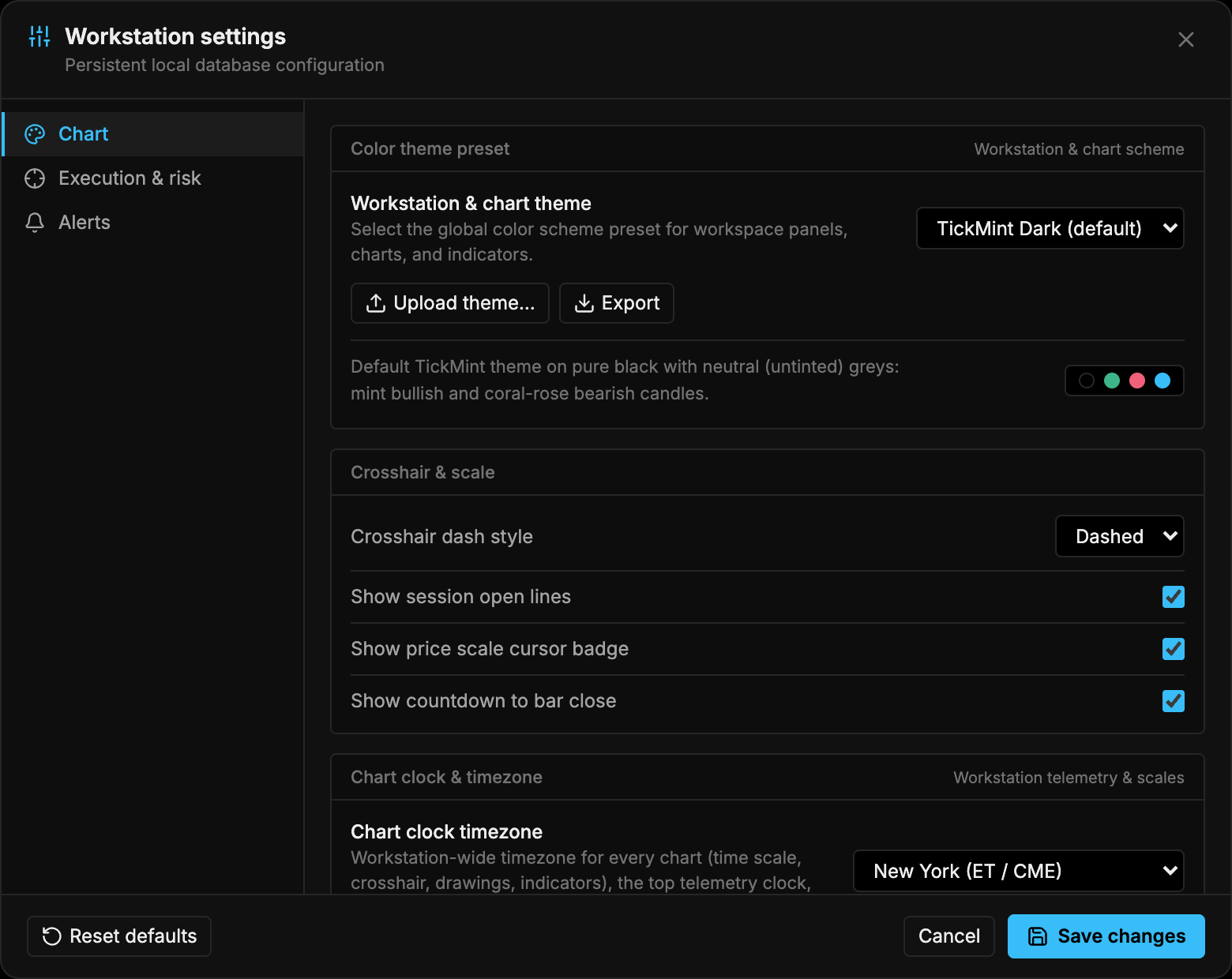
Color theme preset
| Field | Options | Default |
|---|---|---|
| Workstation & chart theme | TickMint Dark, TickMint Light, Cyber, Daylight, Monochrome, Midnight OLED, Nordic Frost, Blue / Amber Pro, Institutional CRT, Tokyo Dusk | TickMint Dark |
| Upload theme… | Load a theme file | |
| Export | Save the current theme to a file |
The theme applies to workspace panels, charts and indicators. See Themes.
Crosshair & scale
| Field | Options | Default |
|---|---|---|
| Crosshair dash style | Dashed, Dotted, Solid | Dashed |
| Show session open lines | On / off | On |
| Show price scale cursor badge | On / off | On |
| Show countdown to bar close | On / off | On |
Chart clock & timezone
| Field | Default |
|---|---|
| Chart clock timezone | Local System Time |
Available timezones: Local System Time, UTC, New York (ET / CME), Chicago (CT / CME Central), Denver (MT), Los Angeles (PT), Phoenix (MST / No DST), São Paulo (BRT), London (GMT / BST), Frankfurt / Berlin (CET / CEST), Paris (CET / CEST), Zurich (CET / CEST), Tokyo (JST), Hong Kong (HKT), Singapore (SGT), Shanghai (CST) and Sydney (AEST / AEDT).
The timezone applies across the workstation: every chart’s time scale, crosshair, drawings and indicators, the header clock, Market Replay and the docks.

Execution & risk
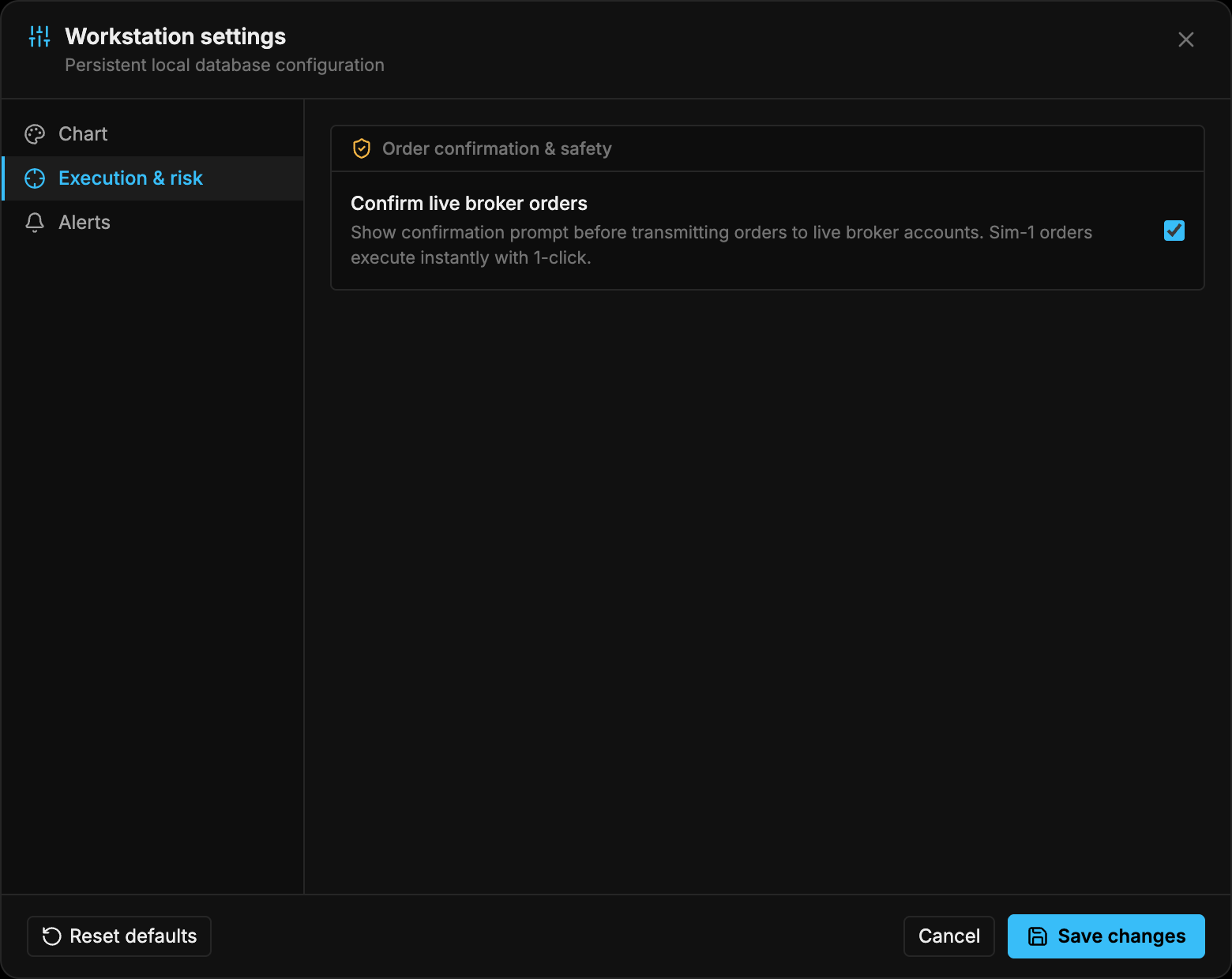
| Field | Default | What it does |
|---|---|---|
| Confirm live broker orders | On | Shows a confirmation prompt before an order is sent to a live broker account |
SIM-1 orders always execute instantly with one click, whatever this is set to.
Alerts
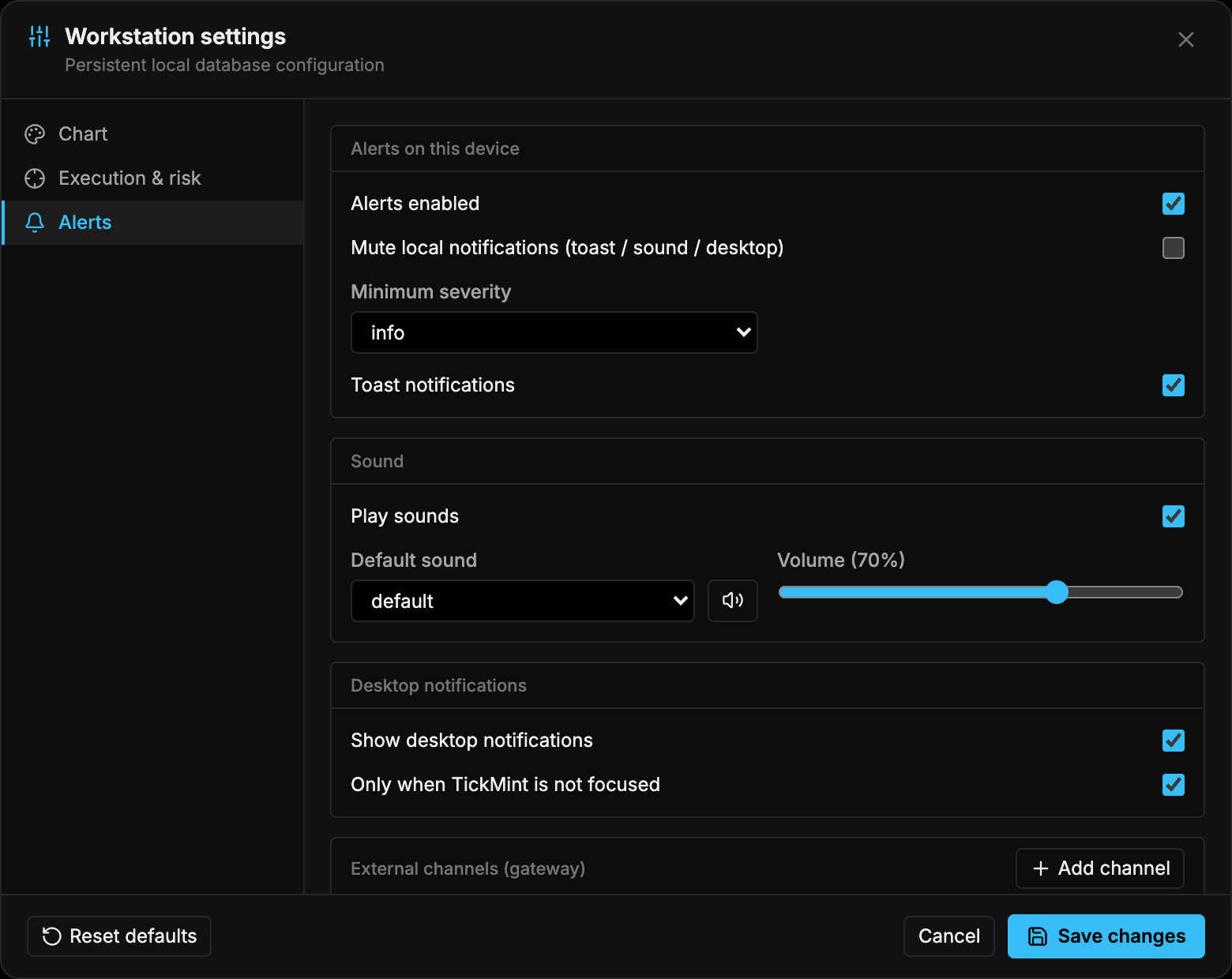
Alerts on this device
These settings only apply to the computer you’re on.
| Field | Options | Default |
|---|---|---|
| Alerts enabled | On / off | On |
| Mute local notifications (toast / sound / desktop) | On / off | Off |
| Minimum severity | info, warning, critical | info |
| Toast notifications | On / off | On |
| Play sounds | On / off | On |
| Default sound | default, chime, bell, alarm, up, down, none | default |
| Volume | 0–100% | 70% |
| Show desktop notifications | On / off | On |
| Only when TickMint is not focused | On / off | On |
You can also mute alerts on this device by right-clicking (or Alt+clicking) the alert bell in the header.
External channels (gateway)
Click Add channel to send alerts to a webhook, Discord, Slack, Telegram or email. Checked channels are the defaults. Indicators can also target channels by name in their alert settings.
See Alerts and webhooks for setting up each channel.