Rithmic setup
TickMint connects to market data and order routing through Rithmic. You can add several connections, for example one per prop firm, and choose which one feeds the charts.
New to this concept? ReadFutures Prop Firm Trading: The Complete Guide.
Before you connect
TickMint shows this reminder in the form for Apex and BluSky. It applies to every provider.
Add a connection
-
Open the Connection Manager by clicking the connection status button in the header.
-
Click + Add Connection.
-
Fill in the form:
Field What to enter Connection name A label for this login, for example Apex EvalProvider Your prop firm or broker (see the table below) User ID / password Your Rithmic credentials for that provider Rithmic System Name Only for Custom / Direct Rithmic. Defaults to Rithmic Paper Trading.Gateway The Rithmic server region. Defaults to Chicago Area. -
Click Save & Connect to log in right away, or Save to store the connection for later.
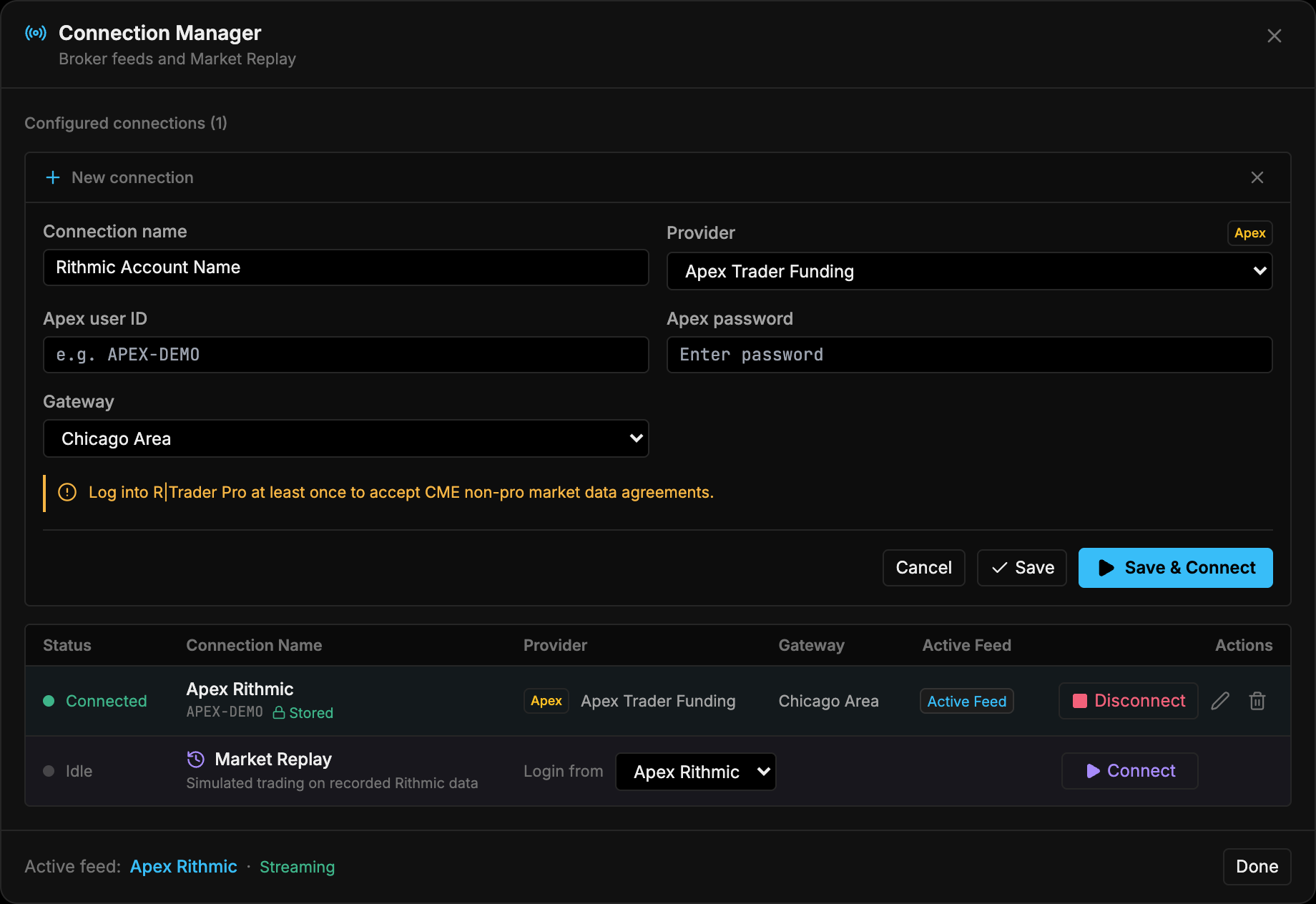
Passwords are encrypted before they are written to the local database. The encryption key is protected by your OS keychain. See Local-first and privacy.
Supported providers
Each preset fills in the right Rithmic system for you.
| Provider | Rithmic system | Notes |
|---|---|---|
| Apex Trader Funding | Apex |
|
| BluSky Trading | Rithmic Paper Trading |
Via Sweet Futures |
| Bulenox | Rithmic Paper Trading |
|
| DayTraders.com | DayTraders.com |
|
| Earn2Trade (Evaluation) | Earn2Trade |
Evaluation accounts |
| Earn2Trade (LiveSim / Funded) | Rithmic Paper Trading |
Funded accounts |
| Elite Trader Funding | Rithmic Paper Trading |
|
| LeeLoo Trading | Rithmic Paper Trading |
|
| Lucid Trading | LucidTrading |
|
| My Funded Futures | Rithmic Paper Trading |
|
| NextPropTrader | Rithmic Paper Trading |
|
| OneUp Trader (MES Capital) | MES Capital |
|
| OneUp Trader (Paper Trading) | Rithmic Paper Trading |
Evaluation accounts |
| TakeProfit Trader (Dedicated) | TakeProfitTrader |
|
| TakeProfit Trader (Paper Trading) | Rithmic Paper Trading |
Evaluation accounts |
| Tradeify | Tradeify |
|
| The Trading Pit | TheTradingPit |
|
| Legends Trading | LegendsTrading |
|
| TradeDay | Rithmic Paper Trading |
|
| Humble Futures | Rithmic Paper Trading |
|
| Custom / Direct Rithmic | You enter it | For brokers and firms not listed |
Custom / Direct Rithmic
Pick Custom / Direct Rithmic (under Custom & Broker Direct in the provider list) for a broker or firm that isn’t listed. Enter the exact Rithmic System Name your broker gives you. It’s the same name you’d pick in R|Trader Pro.
Gateways
Choose the Rithmic server closest to you, unless your provider requires a specific one.
| Gateway |
|---|
| Chicago Area (default) |
| Europe |
| Frankfurt |
| Singapore |
| Tokyo |
| Sydney |
| Sao Paulo |
Manage connections
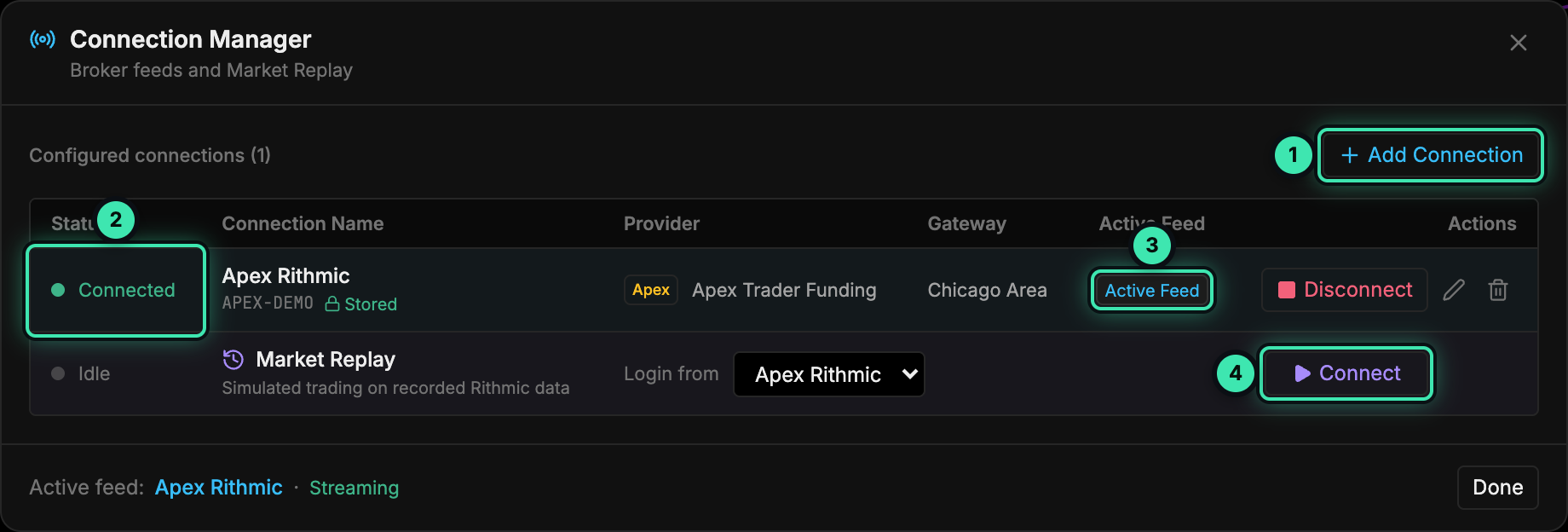
- + Add Connection.
- Status: Connected, Connecting… or Disconnected.
- Active Feed: which connection streams market data. Click Select to switch.
- Market Replay: Connect starts replay and ends all live connections.
- Connect / Disconnect logs a connection in or out.
- Edit (pencil) changes the name, provider, gateway or credentials. Leave the password blank to keep the stored one.
- Remove (trash) deletes the connection from TickMint.
- Active Feed marks the connection that feeds charts and the DOM. The footer shows the current feed and its status.
If a login fails, the row shows Connection error with the reason and an option to update your credentials.
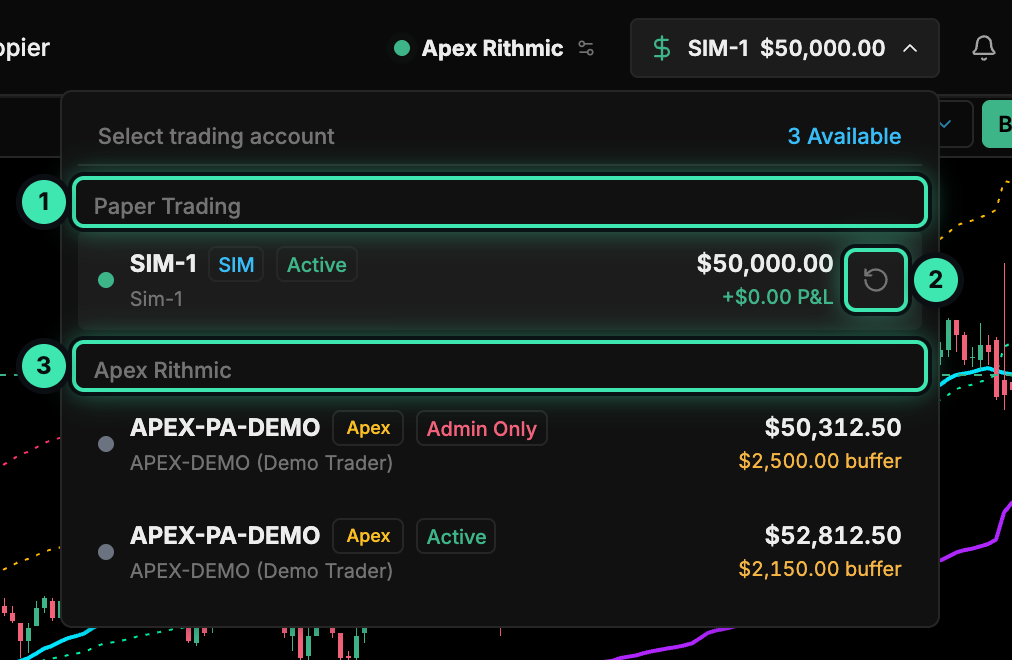
- Paper Trading: the built-in SIM-1 account.
- ↻ Reset the SIM-1 balance.
- Accounts from the Apex Rithmic connection, with balance and drawdown buffer.
Market Replay
The Market Replay row lets you trade recorded Rithmic data in simulation. It logs in through one of your Rithmic connections (pick it in Login from) and ends all live connections while it runs. Click End Market Replay to go back to live. See Replay mode.