Trading Dock
The trading dock runs along the bottom of the workstation. It has four tabs: Positions, Orders & Fills, Accounts and Alerts. Tab labels show a count (for example Positions (1)), and Alerts shows an unread badge.
Drag the top edge of the dock to resize it, or click the chevron at the right end of the tab bar to collapse it.
P&L strip
The right side of the tab bar summarizes the selected account:
| Field | Meaning |
|---|---|
| Day P&L | Today’s closed-trade P&L plus open position P&L, for the current CME Globex session |
| P&L | Net P&L: gross realized minus total commission (shown for broker accounts, not Sim) |
| Realized | Gross realized P&L, before commissions |
| Commission | Total brokerage and exchange commissions |
| Open | Unrealized P&L of open positions |
Positions

Each open position shows Symbol, Side, Qty, Entry price, Mark price, PnL (pts) and Unrealized PnL. Click CLOSE to close that position. If the broker is disconnected, the same button clears a local “ghost” position instead.
Orders & Fills

Columns: Time, Order ID, Symbol, Side, Type, Price, Qty, Status, Action. Click × Cancel to cancel a working order.
| Status | Meaning |
|---|---|
SUBMITTING |
Sent, waiting for the broker to acknowledge |
WORKING |
Live at the broker (or in the simulator) |
PENDING_CANCEL |
Cancel requested, waiting for confirmation |
FILLED |
Completely filled |
CANCELLED |
Cancelled |
ORPHAN badge |
A bracket order is still working at the broker while the position is flat. Cancel it. |
· STALE |
The broker is disconnected; this is the last known state |
See Order Lifecycle for how statuses change.
Accounts

The summary row shows the number of accounts, the Combined balance, total Open P&L and Realized P&L. Each account row shows:
| Column | Meaning |
|---|---|
| Account / Provider | Account alias and its connection (Paper Trading for Sim) |
| Status | Account status reported by the broker |
| Day P&L | Closed plus open P&L for the session |
| Account balance | Cash balance |
| Open P&L | Unrealized P&L |
| Net liquidity | Balance plus open P&L |
| Realized P&L | Realized P&L for the session |
| Equity high | Peak balance used for trailing drawdown |
| Liq threshold | Auto-liquidation level (blank for Sim) |
| Buffer (remaining) | Net liquidity minus the threshold, i.e. drawdown left before liquidation (blank for Sim). Turns red with a warning icon under $500. |
| Action | ACTIVE for the selected account, SELECT to switch to another |
Values marked est. are estimated by TickMint rather than reported by the broker.
Reset the simulation balance
The ↻ button next to the Sim account (tooltip Reset Simulation Balance) opens the Reset simulation account dialog. It shows the current sim balance and realized P&L.
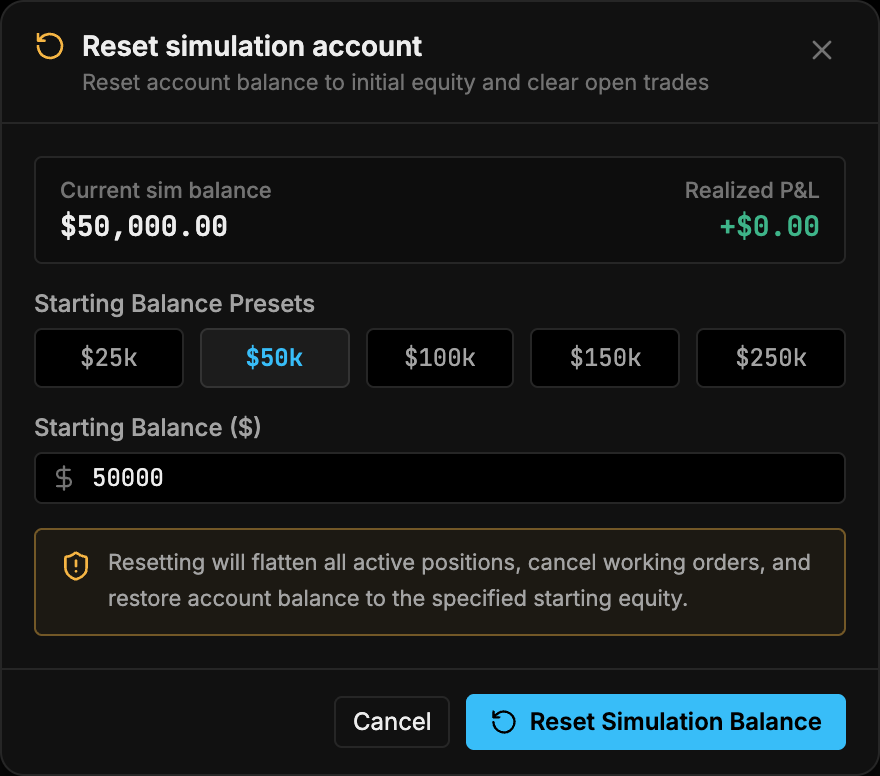
- Click ↻ on the Sim row.
- Choose one of the Starting Balance Presets ($25k, $50k, $100k, $150k, $250k) or type a Starting Balance ($).
- Read the warning: resetting flattens all active positions, cancels working orders and restores the balance to the starting equity you chose.
- Click Reset Simulation Balance (or Cancel).
This affects only the local Sim account. See SIM mode.
Alerts
The Alerts tab lists alert history with Time, Source, Symbol, Message, Price and Channels. Filter by severity (Info, Warning, Critical) or symbol, acknowledge single alerts, Mark all as read or Clear history. To create alerts, see Alerts & Webhooks.