Lead & Follower Copying
New to this concept? ReadHow to Manage Multiple Prop Firm Accounts.
The Trade Copier mirrors the orders you place on a lead account to one or more follower accounts. A lead and its followers form a copier group. Each group has its own rules, and each follower has its own sizing, symbol map and risk limits. You can run several groups at once, for example one for ES and one for NQ. See Copier groups.
Requirements
- At least two live Rithmic accounts connected. With fewer, the copier window shows “Trade Copier Requires 2+ Live Accounts”.
- SIM and REPLAY accounts are always excluded, as both lead and follower.
- Only orders placed through TickMint on the lead are copied. Orders placed in R|Trader Pro or another platform are not seen.
Open the copier
Click Copier in the header, or press Shift+C (or Alt+C). Shortcuts are ignored while you are typing in a field.
The copier always opens in its own window, TickMint — Trade Copier. Only one copier window can be open. It remembers its size and position, and closes when the main window closes. If nothing appears, your browser blocked the pop-up; allow pop-ups for TickMint and try again.
A pulsing dot on the header Copier button means at least one group is copying.
Create your first group
The first time you open the copier it shows Create your first group.
- Click New group. The name defaults to Main group.
- Pick the Lead account.
- Tick the Followers you want in the group. They start enabled with a multiplier of
×1. - Click Create group. New groups start with copying off.
- Check each follower’s size and limits, then turn copying on (see Turn copying on and off).
The copier workspace
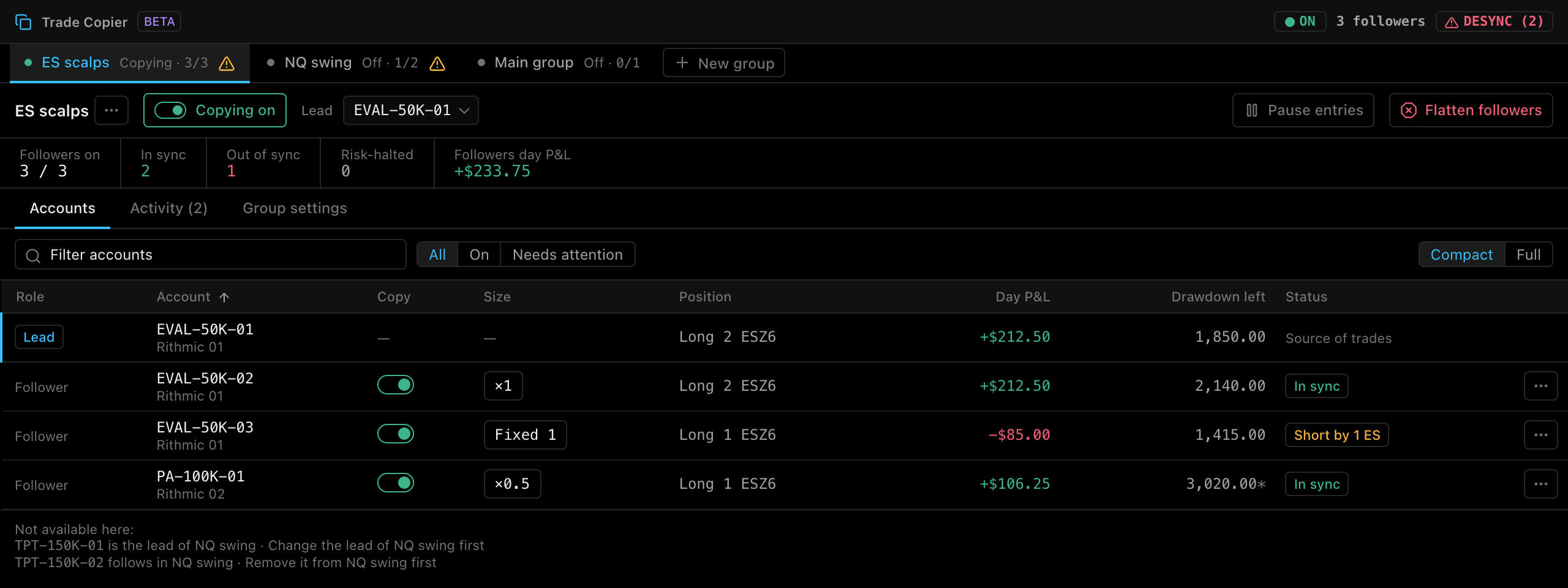
| Area | What it does |
|---|---|
| Title bar | ON/OFF pill, follower count, and a DESYNC (n) badge when there are copier alerts. |
| Group strip | One tab per group with its state (Copying or Off) and followers on, e.g. 3/3. A ⚠ marks a group that needs attention. New group adds another. See Copier groups. |
| Group name and ⋯ | Rename, duplicate or delete the group. |
| Copying on / Copying off | Turns copying on or off for this group. |
| Lead | Picks the lead account for this group. |
| Pause entries / Resume entries | Stops or resumes copying new entries. Exits are still copied. Applies immediately. |
| Flatten followers | Closes every follower position in this group. See risk protection. |
| Stat strip | Followers on, In sync, Out of sync, Risk-halted and Followers day P&L. |
| Tabs | Accounts, Activity and Group settings. |
The copier remembers which group you had selected.
Turn copying on and off
Click Copying off to start copying. TickMint asks you to confirm first:
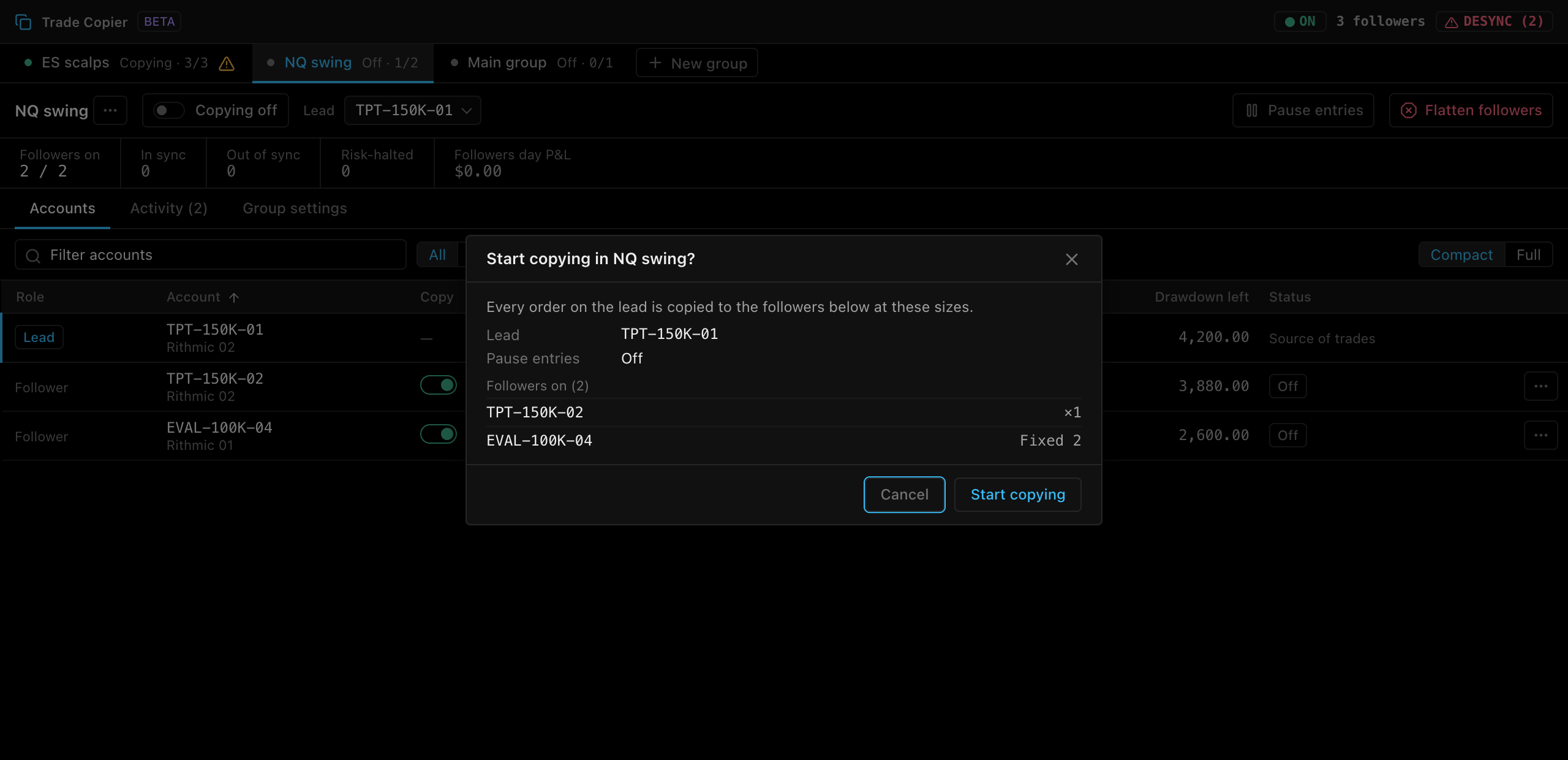
The dialog (e.g. Start copying in NQ swing?) shows:
- The Lead account.
- Pause entries: On (only exits are copied) or Off.
- Followers on (n) with each follower’s size. If none are on, it says “No followers are on: nothing will be copied.”
Click Start copying to confirm. Copying can’t start if:
| Message | Fix |
|---|---|
| Choose a lead account first | Pick a Lead. |
| The lead account is not connected | Reconnect the lead account. |
| Resolve the account conflicts first | See Account conflicts. |
If the group has unsaved edits, TickMint first asks Save changes before copying? (Discard, Cancel or Save), because copying always uses the saved settings.
Click Copying on to turn copying off. This applies immediately and does not ask for confirmation. Turning copying off never closes positions.
Choose the lead
Open the Lead dropdown and pick a live account. One account can be the lead of several groups. An account that follows in another group is disabled in the list and shows (follows in {group}).
If the lead disconnects, a banner says the lead is unavailable or not connected and nothing is copied. Once it reconnects, click Resume.
While copying is on, the header and account menu show LEAD and FOLLOWER badges next to each account.
The Accounts tab
The table lists the lead first, then every follower in the group. Filter by account name, or with All, On or Needs attention. Compact shows the essential columns; Full adds the symbol map, balance, unrealized P&L and max position.
| Column | Meaning |
|---|---|
| Role | Lead, Follower, or Available for a live account that isn’t in any group yet. |
| Account | Account name and connection. |
| Copy | Copy to this follower. For a follower, this applies immediately. |
| Size | ×0.5 for a multiplier, Fixed 2 for a fixed quantity. Click it to change it. A red ● marks an invalid setting. |
| Position | The account’s current position. |
| Day P&L | Today’s P&L. |
| Drawdown left | Drawdown remaining. * means the figure is estimated (not broker data). |
| Status | See below. |
| ⋯ | Advanced settings…, Flatten this account and Remove from group. |
To add an Available account, turn its Copy switch on or change a setting, then save.
Accounts that already belong to another group are not listed in the table. They appear under Not available here with the reason and the fix, e.g. “follows in NQ swing · Remove it from NQ swing first”.
| Status | Meaning |
|---|---|
| In sync | The follower’s position matches the scaled lead position. |
| Flat | The lead and follower are both flat. |
| Short by N / Over by N | The follower holds fewer or more contracts than expected, e.g. Short by 1 ES. |
| Opposite side | The follower is on the other side of the lead. |
| Clipped | The size was capped by a limit. |
| Risk-halted · Re-enable | A risk limit stopped new entries. Click Re-enable to resume. |
| Paused | Entries are paused. |
| Off | Copying to this follower is off. |
Statuses are for display only. They don’t place or cancel orders by themselves.
Sizing
Click a follower’s Size to change it in place.
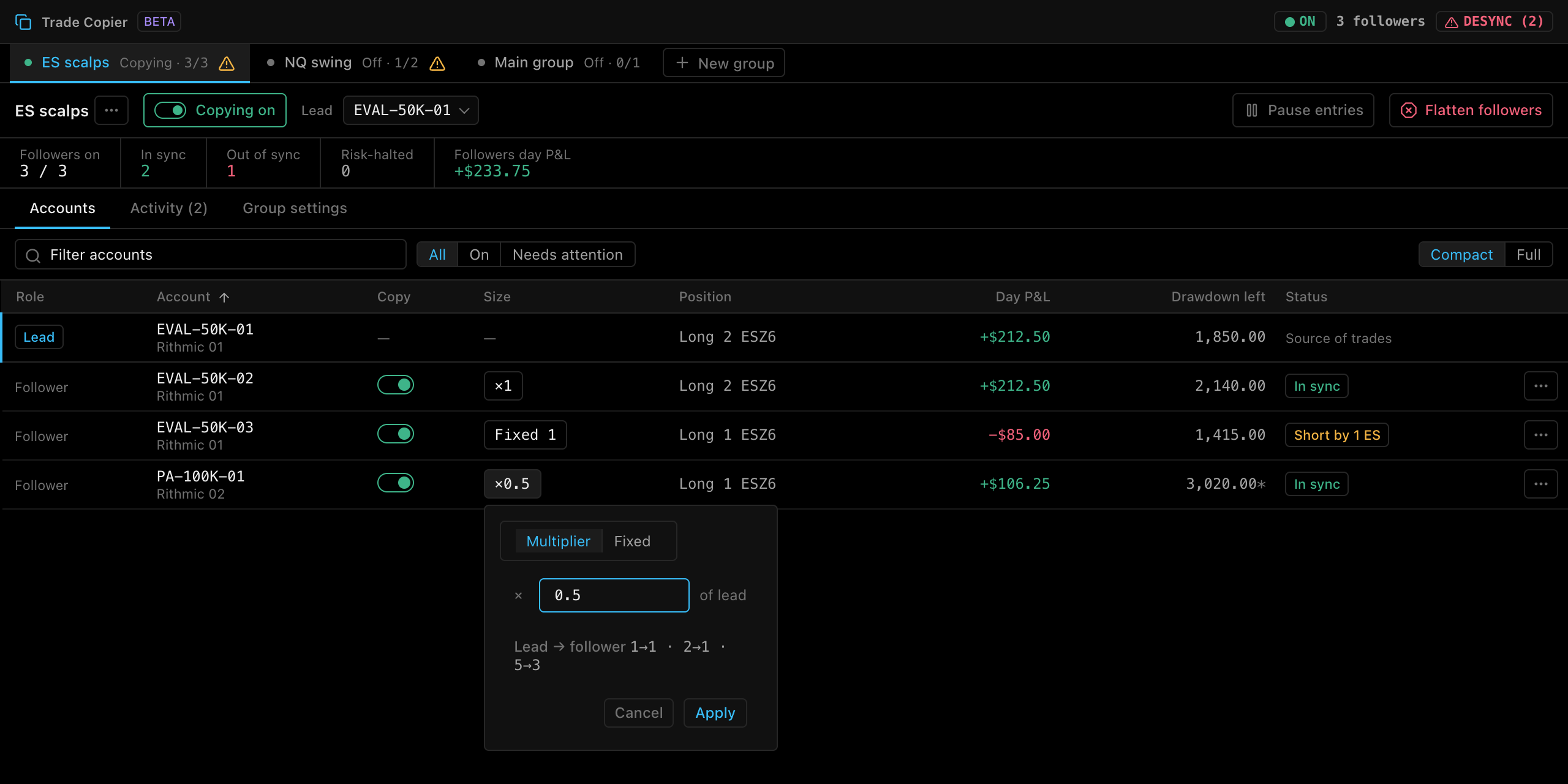
Choose Multiplier (e.g. 0.5 of the lead) or Fixed (the same quantity on every copied order), then click Apply. The preview shows the result, e.g. 1→1 · 2→1 · 5→3.
With Fixed, reducing orders are capped at the open position, and a full lead close always flattens the follower.
Follower settings
Choose Advanced settings… from a follower’s ⋯ menu to open its settings drawer.
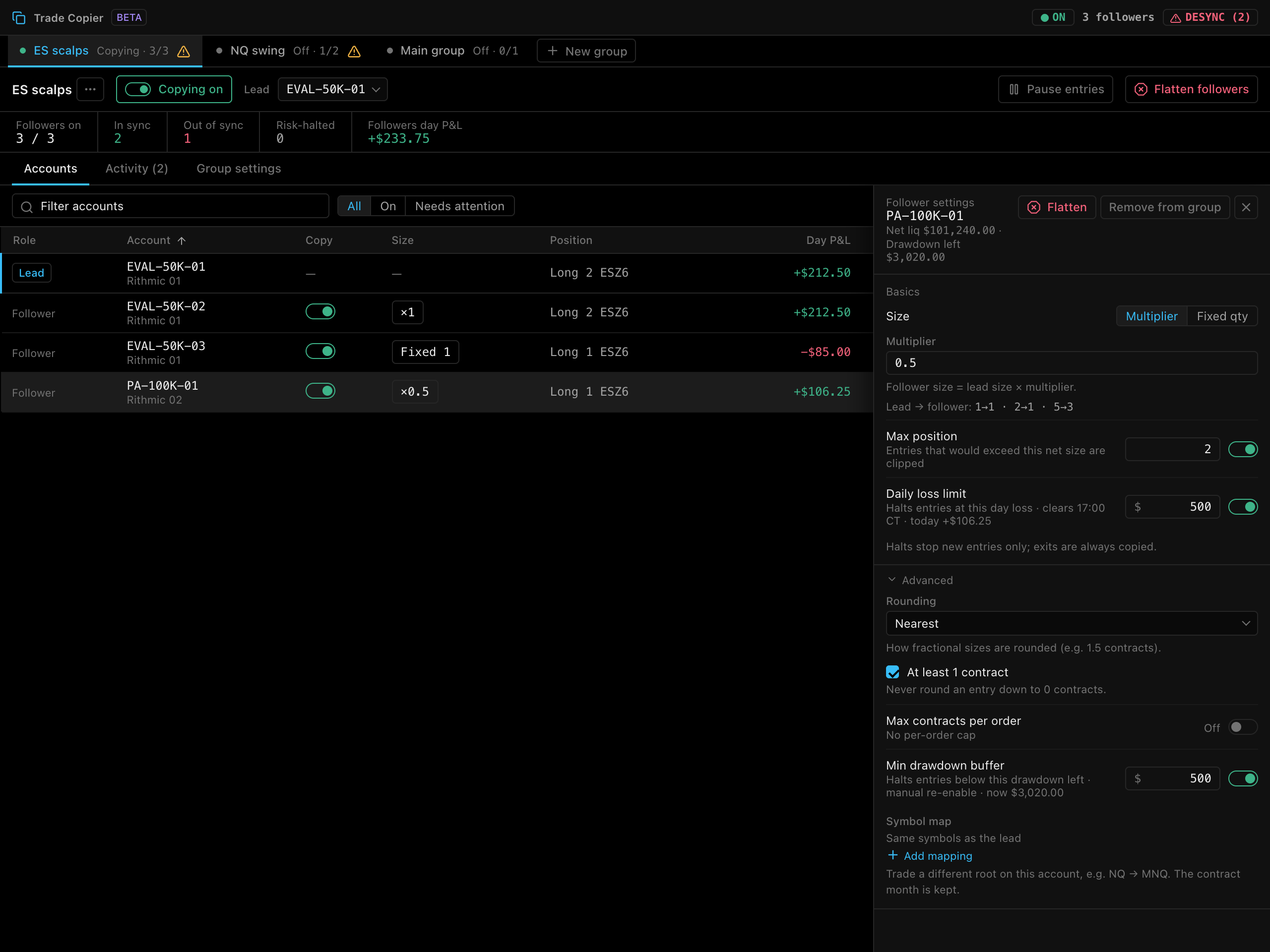
The header shows the account’s net liq and drawdown left, with Flatten and Remove from group buttons.
| Section | Setting | Default |
|---|---|---|
| Basics | Size: Multiplier or Fixed qty | Multiplier ×1 |
| Basics | Max position | Off |
| Basics | Daily loss limit | Off |
| Advanced | Rounding: Round down or Nearest | Round down |
| Advanced | At least 1 contract (never round an entry down to 0) | Off |
| Advanced | Max contracts per order | Off |
| Advanced | Min drawdown buffer | Off |
| Advanced | Symbol map | Same symbols as the lead |
The limits are explained in risk protection.
Symbol map
By default followers trade the same symbols as the lead. To trade a different product, click Add mapping and map one root to another, e.g. NQ → MNQ. The contract month is kept, so NQZ6 becomes MNQZ6.
Remove a follower
Choose Remove from group from the follower’s ⋯ menu or in its drawer. The removal applies when you save. It’s disabled while the account has an open position (“Flatten first”). Once removed, the account can join another group.
Group settings
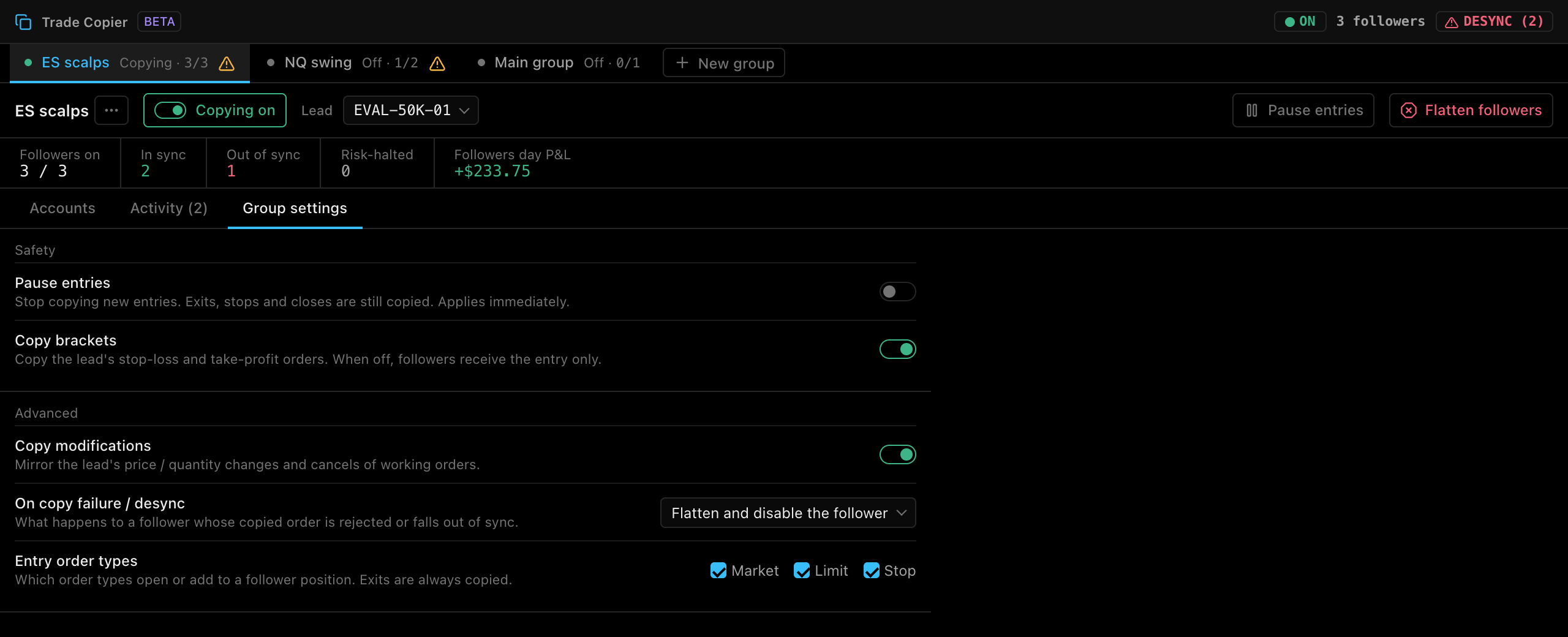
| Setting | Default | Effect |
|---|---|---|
| Pause entries | Off | Stops copying new entries. Exits, stops and closes are still copied. Applies immediately. |
| Copy brackets | On | Copies the lead’s stop-loss and take-profit orders. When off, followers receive the entry only. |
| Copy modifications | On | Mirrors the lead’s price and quantity changes and cancels of working orders. |
| On copy failure / desync | Flatten and disable the follower | What happens when a copied order is rejected or a follower falls out of sync. See risk protection. |
| Entry order types | Market, Limit, Stop | Which order types may open or add to a follower position. Stop-limit counts as Stop. Exits are always copied. |
Turning Copy brackets off asks Stop copying brackets? (Turn off brackets). Afterwards a badge warns “Followers have no stop / target”.
Save changes
Edits to sizes, limits, the lead and group settings are drafts. A save bar shows Unsaved changes in and the group name, or Fix the invalid settings in and the group name if something is invalid. Click Revert to discard or Save to keep them.
If the group is copying when you save, TickMint shows Apply changes to the live copier? with a table of every change (Scope, Setting, From, To). Click Save & apply to confirm.
These controls apply immediately, without saving: Copying on / off, Pause entries and a follower’s Copy switch.
If the gateway rejects a save because of an account conflict, the error starts with Cannot save "{group}":. See Account conflicts.
What gets copied
| Lead action | Follower result |
|---|---|
| Submit order | Same order type and side, quantity scaled. |
| Bracket (stop / target) | Legs scaled. A leg that rounds to 0 is dropped. |
| Modify order | Same price, quantity scaled. |
| Cancel order | Cancelled on followers. |
| Close position / Flatten account | Followers close or flatten too. |
| Lead order rejected | Matching follower orders are cancelled. |
When one account leads several groups, each of its orders is copied to the followers of every group that is copying.
Group settings and risk limits only block orders that would increase a follower’s exposure. Exits are always copied. A copier failure never affects the lead’s own order.
Where settings are stored
Copier groups and settings are saved locally in the gateway database (tickmint.db). See Local-first & privacy.