Copier Risk Protection
Each follower can have its own risk limits. The copier also watches for rejected copies and followers that drift out of sync, and alerts you when it happens. If something goes wrong, you can flatten one follower, every follower in a group, or every account at once.
Per-follower risk limits
Choose Advanced settings… from a follower’s ⋯ menu to open its settings drawer (see Follower settings). All limits are off by default. When a limit is off, the drawer says so, e.g. “No position cap” or “No daily loss halt”.
| Limit | Drawer section | Value when turned on | What happens |
|---|---|---|---|
| Max position | Basics | 1 contract | Entries that would exceed this net size are clipped. The follower shows Clipped. |
| Daily loss limit | Basics | $500 | When the follower’s day loss reaches the limit, entries halt. The halt clears automatically at the 17:00 CT session reset. |
| Max contracts per order | Advanced | 1 contract | Caps each copied order. |
| Min drawdown buffer | Advanced | $500 | When drawdown left falls below the buffer, entries halt until you re-enable the follower. Skipped while the drawdown figure is only an estimate (*). |
Limits are checked every 30 seconds and on every P&L update.
A halted follower shows Risk-halted · Re-enable in the table. Its drawer shows a banner such as “Risk-halted: daily loss limit” with the note “New entries are not copied; exits still are.” Click Re-enable in the table or Re-enable now in the drawer to resume.
Copy failures and desync
Choose what happens when a copied order is rejected or a follower falls out of sync in Group settings → On copy failure / desync:
| Option | Effect |
|---|---|
| Flatten and disable the follower (default) | Closes the follower’s position and turns copying to that follower off. |
| Flatten the follower | Closes the position but keeps copying to the follower. |
| Alert only (leave positions as they are) | Raises an alert and does nothing else. |
If a copied bracket fails a safety check, the order is not copied and a CRITICAL alert is raised.
Keep Copy brackets on so followers get the lead’s stop-loss and take-profit. If you turn it off, the group shows “Followers have no stop / target”.
Copier activity and alerts
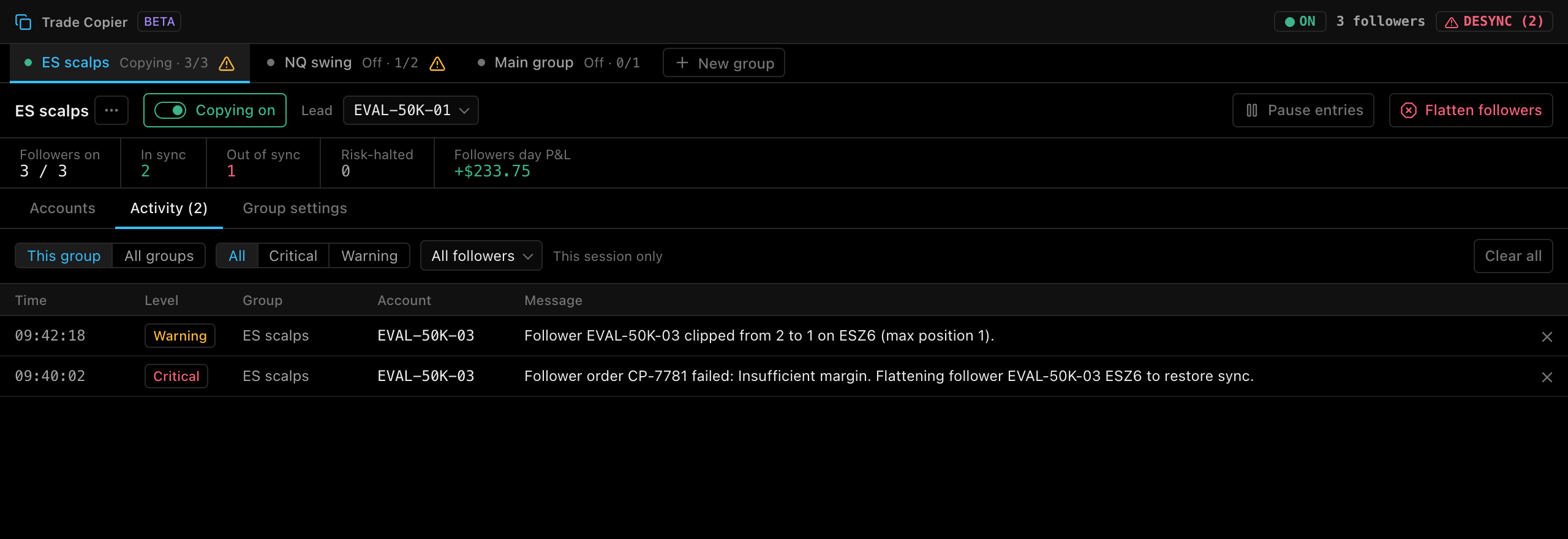
- WARNING alerts appear as a toast starting with “Trade Copier:”.
- CRITICAL alerts open a blocking dialog titled Trade Copier Alert: and the group name, with the lead, follower and severity. You must dismiss it.
- The main window header shows a red
DESYNC (n)button while there are copier alerts (“Copier Desync Alert! Follower entries halted. Click to inspect.”). Click it to open the copier. The copier title bar shows the same badge.
On the Activity tab:
- Choose This group or All groups. The Group column appears when you have more than one group.
- Filter by All, Critical or Warning, or by follower.
- Click ✕ on a row to dismiss one alert, or Clear all to remove them all.
With no alerts, the tab shows “No copier activity”.
Flatten followers
Flatten followers in the group header closes every follower position in the selected group.
- Click Flatten followers.
- Confirm Flatten all followers? with Flatten followers.
- TickMint cancels working orders and closes positions on every follower at market, then turns on Pause entries so new lead entries aren’t copied straight away.
- When you’re ready, click Resume entries.
The lead account is not touched. Other groups are not affected.
To close only one follower, choose Flatten this account from its ⋯ menu, or click Flatten in its drawer. Confirm (e.g. Flatten EVAL-50K-03?) with Flatten follower.
Emergency Flatten all
While any copier group is copying, the main window header shows a red Flatten all button (“Emergency: turn every copier group off, then flatten every account”). Use it when you need to stop everything at once.
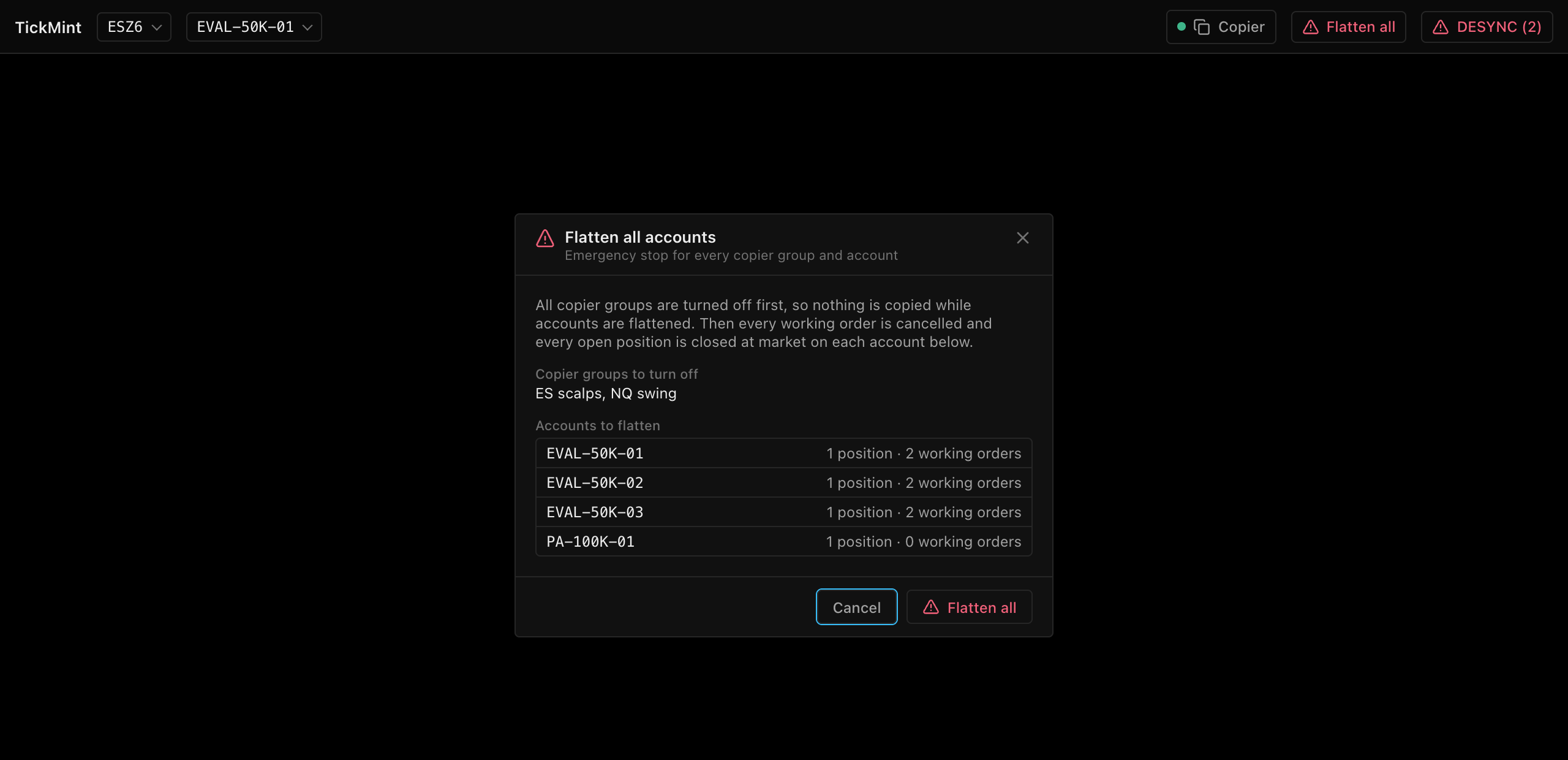
- Click Flatten all in the main window header.
- Review the Flatten all accounts dialog:
- Copier groups to turn off: every group that is copying.
- Accounts to flatten: each account with its open positions and working orders.
- Click Flatten all to confirm. Cancel has focus, and Enter does not confirm, so you can’t trigger it by accident.
All copier groups are turned off first, so nothing is copied while accounts are flattened. Then every working order is cancelled and every open position is closed at market on each account, including leads.
If no positions or working orders are shown, the dialog says so; the gateway still checks every logged-in account.
The dialog then shows the result, e.g. “2 copier groups turned off. 4 accounts flattened.”, with lists of accounts that were Flattened and any that were Not flattened, check these at the broker. Click Done to close it. A toast shows the same result.
Recommended setup for prop accounts
| Setting | Suggestion |
|---|---|
| Daily loss limit | Below the firm’s daily loss rule. |
| Min drawdown buffer | A cushion above the trailing drawdown threshold. |
| Max position | The firm’s contract limit for that account. |
| Copy brackets | On. |
| On copy failure / desync | Flatten and disable the follower. |