DOM Ladder
The DOM (depth of market) ladder is a vertical price ladder with resting bid and ask size, recent trades, session volume and your working orders. You can place, move and cancel orders with the mouse.
New to this concept? ReadOrder Flow Trading: A Practical Guide.
Open it with Toggle Depth of Market in the header toolbar. The DOM docks beside the charts. Drag its edge to resize it (double-click the edge to reset it to 380 px).
Ladder layout
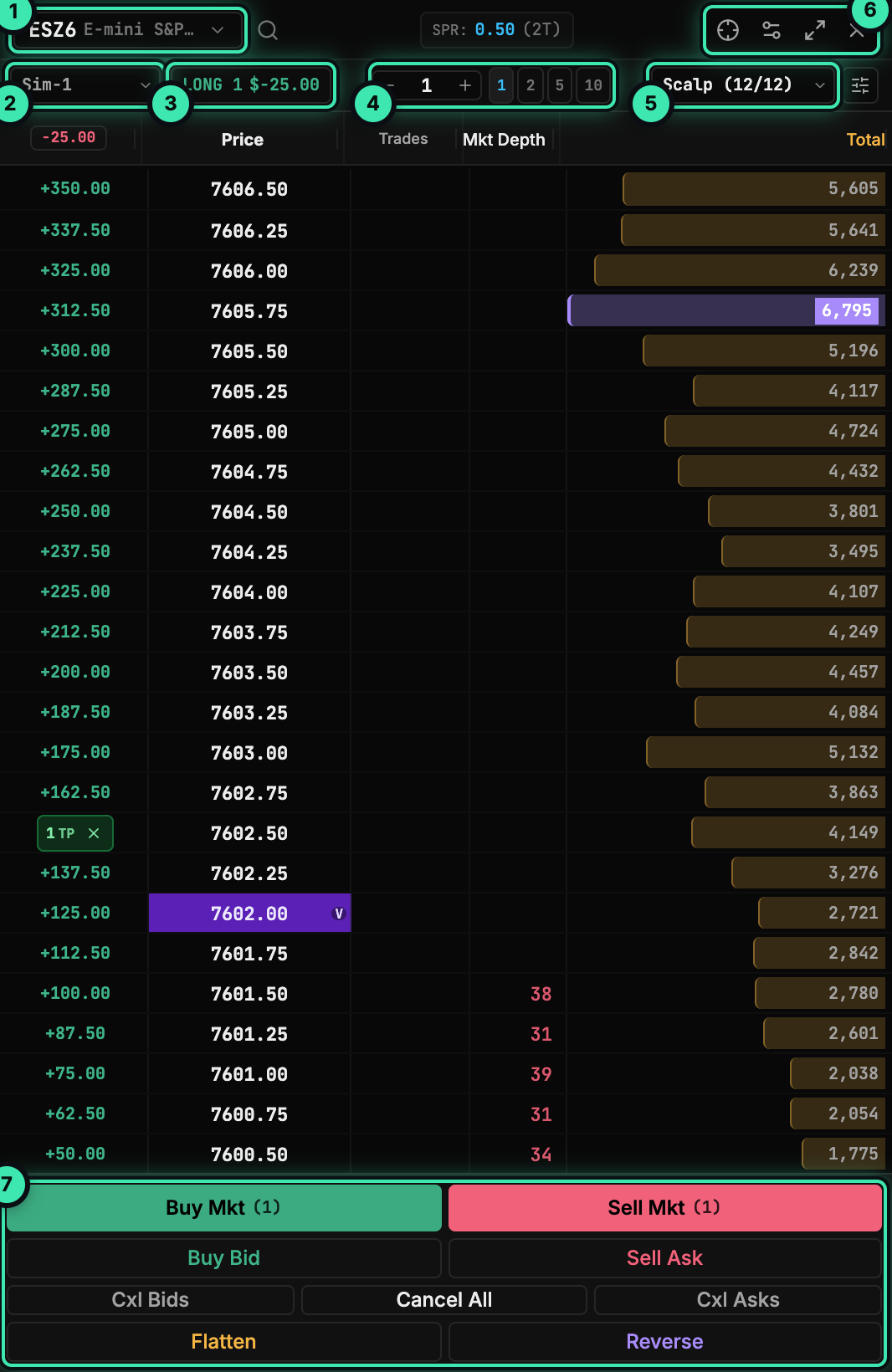
- Instrument switcher (the magnifier opens instrument search, ⌘I).
- Trading account.
- Position and open P&L. Click to cycle the P&L display between USD, ticks and points.
- Order quantity: − / + stepper and presets 1, 2, 5, 10.
- Active ATM strategy, with a button to configure ATM strategies.
- Re-center on market price (Space), DOM settings, maximize, close.
- Trade buttons: Buy Mkt, Sell Mkt, Buy Bid, Sell Ask, Cxl Bids, Cancel All, Cxl Asks, Flatten, Reverse.
| Column | Shows |
|---|---|
| Order entry / P&L | Your working orders at each price (click × to cancel, drag to reprice). While you hold a position, each row shows the P&L if you exited at that price; the column header shows the current open P&L. |
| Price | Price levels. Badges mark the session high, low, open, prior day close and session VWAP. |
| Trades | Recent trades at each price, sell × buy, over a rolling 60-second window. |
| Mkt Depth | Resting bid and ask size (limit orders) from the order book. |
| Total | Session volume profile: total traded volume at each price, reset at the session boundary. The point of control is highlighted. |
SPR at the top shows the current spread in price and ticks. Drag a column divider to resize a column; double-click it to fit the text.
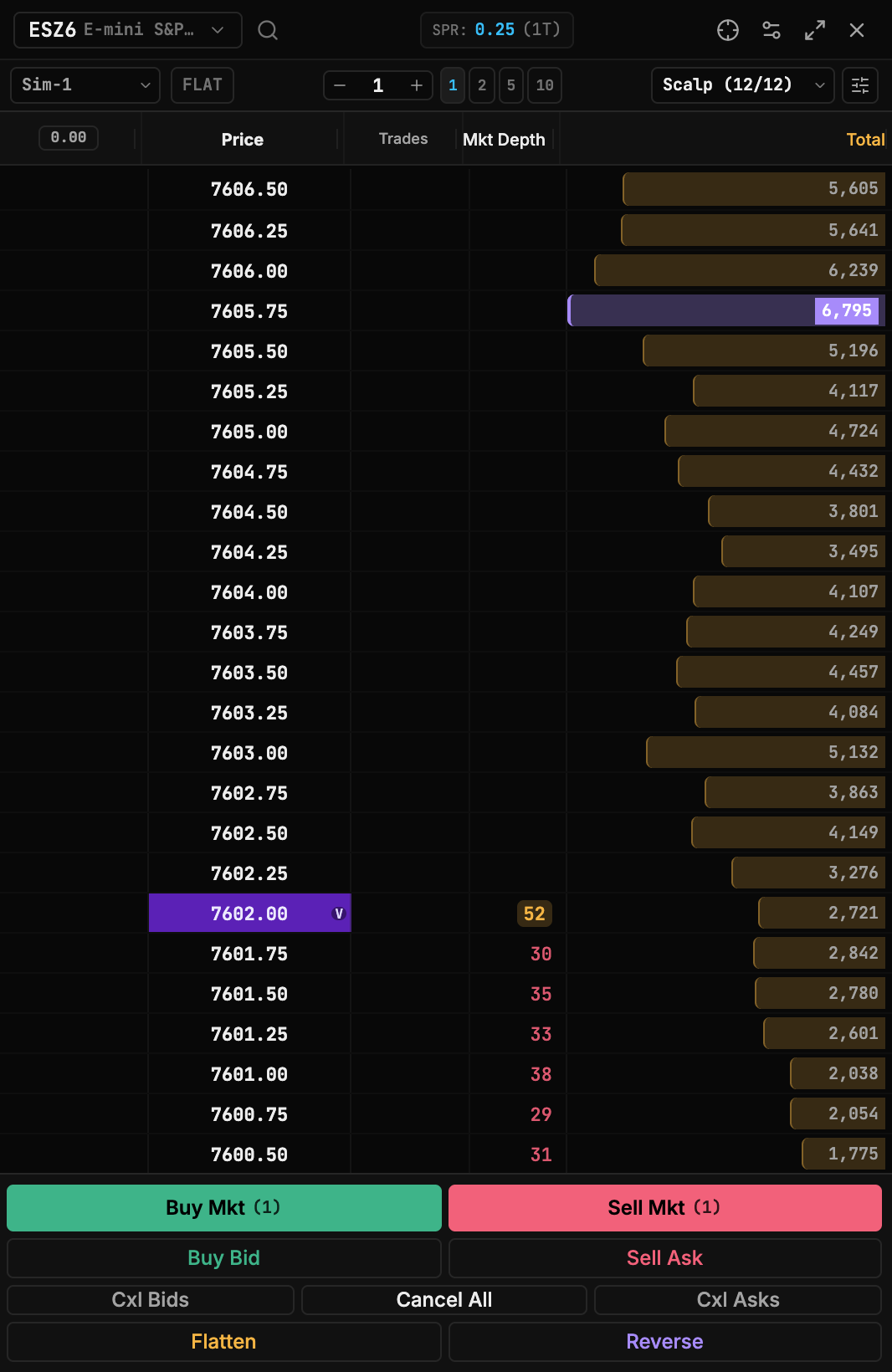
Place orders by clicking
Click in the order-entry column on the row of the price you want.
| Action | Where | Result |
|---|---|---|
| Left-click | At or below the best bid | Buy limit at that price |
| Left-click | At or above the best ask | Sell limit at that price |
| Left-click | Inside the spread | Rejected with a message to use the Buy/Sell buttons |
| Right-click | Above the best ask | Buy stop at that price |
| Right-click | Below the best bid | Sell stop at that price |
| Right-click | A price where the stop would trigger immediately | Rejected |
Orders use the quantity (4) and the active ATM (5). If the ladder has no order book yet, the order is not sent.
Drag a working order to another row to reprice it, or click its × to cancel it.
Trade buttons
| Button | Action |
|---|---|
| Buy Mkt / Sell Mkt | Market order for the current quantity |
| Buy Bid | Buy limit at the best bid |
| Sell Ask | Sell limit at the best ask |
| Cxl Bids | Cancel all working buy orders |
| Cancel All | Cancel all working orders for this instrument |
| Cxl Asks | Cancel all working sell orders |
| Flatten | Close the position immediately and cancel all working orders |
| Reverse | Reverse the current position |
Keyboard and scrolling
These keys work when the pointer is over the ladder (or it has focus) and you are not typing in an input:
| Key | Action |
|---|---|
| Space | Re-center the ladder on the market price |
| ↑ / ↓ | Scroll one tick |
| Mouse wheel | Scroll the ladder |
With Auto-centering on, the ladder re-centers by itself when price drifts past the threshold.
DOM settings
Click the settings icon (6) to open DOM window settings.
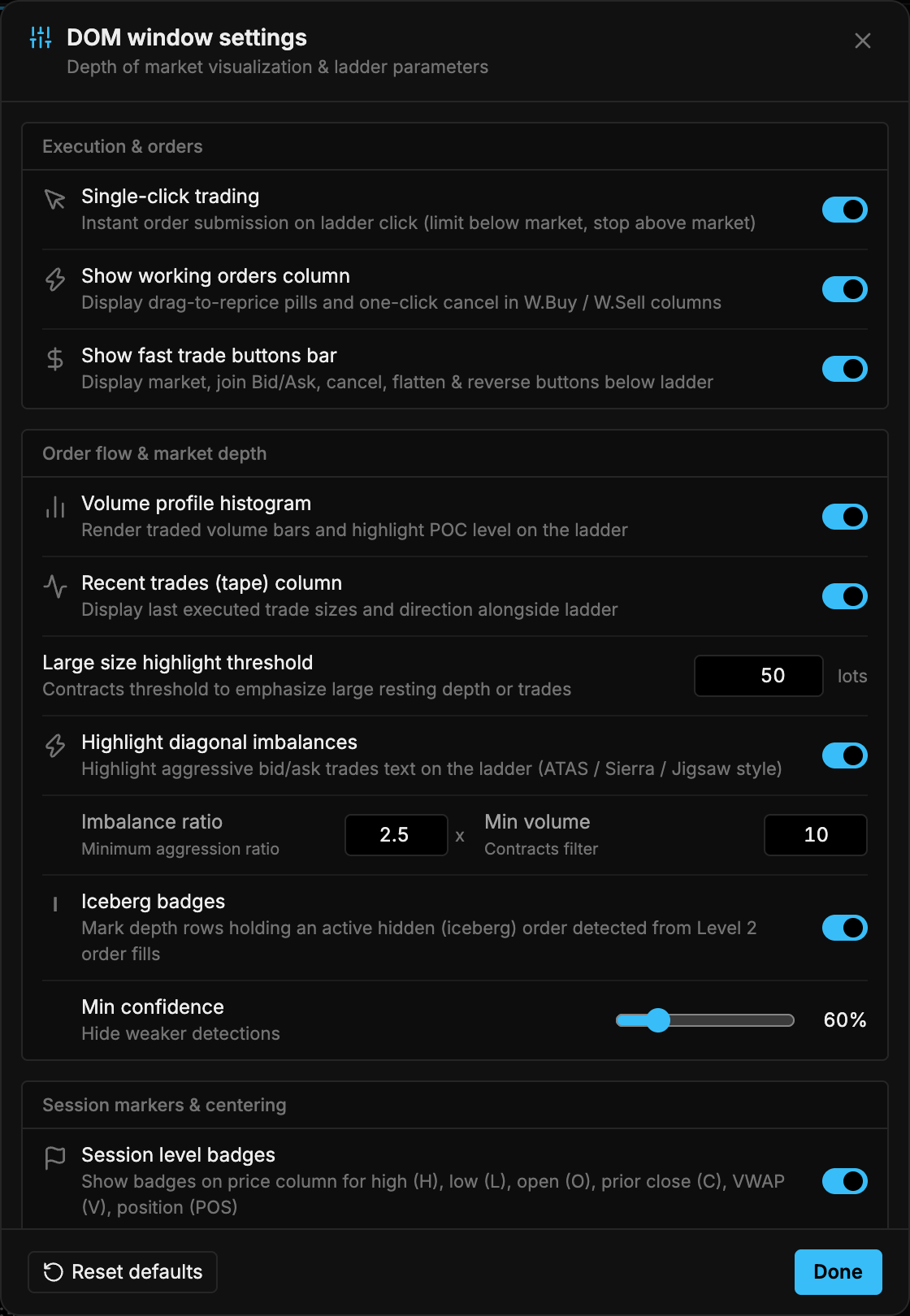
| Section | Setting | Range / options |
|---|---|---|
| Execution & orders | Show working orders column | On / off |
| Show fast trade buttons bar | On / off | |
| Order flow & market depth | Volume profile histogram | On / off |
| Recent trades (tape) column | On / off | |
| Large size highlight threshold | 5–1000 contracts | |
| Highlight diagonal imbalances | Ratio 1.5–10×, minimum volume 1–1000 | |
| Iceberg badges | Minimum confidence 50–100% (default 60%) | |
| Session markers & centering | Session level badges | On / off |
| Auto-centering | Drift threshold 5–50 ticks | |
| Position PnL format | USD, Ticks, Points (default unit for the position pill) | |
| Bid/Ask depth levels | Number of depth levels tracked above (asks) and below (bids) | 1–20 |
| Total quantity column | On / off |
Reset defaults restores the factory settings; Done closes the dialog.