Layouts and templates
A layout template is a saved workspace. It remembers how your charts are arranged and what each one shows, so you can switch between setups such as a one-chart scalping view and a four-chart market overview.
What a template saves
- The layout geometry and splitter positions.
- The active panel.
- For each chart panel: instrument, timeframe, candle type, bar width and spacing, trade markers and indicators.
- Whether the DOM ladder is shown, plus any open TPO windows and pop-out chart windows.
Templates are stored in the local database. See Local-first and privacy.
The template menu
Click the template name at the left of the header toolbar.
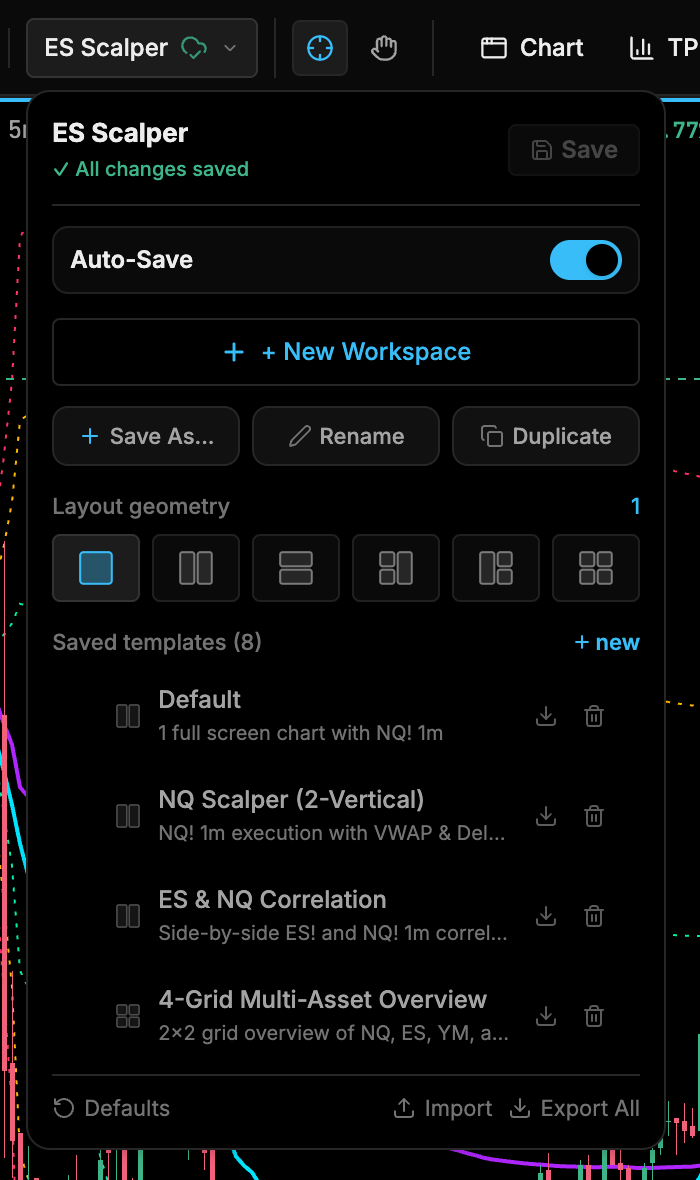
| Control | What it does |
|---|---|
| Save | Saves the current layout and indicators to the active template (Ctrl/⌘+S). The menu shows whether everything is saved. |
| Auto-Save | Saves changes to the active template automatically |
| + New Workspace | Creates a fresh workspace (see below) |
| Save As… | Saves the current workspace as a new template |
| Rename | Renames the active template |
| Duplicate | Copies the active template |
| Layout geometry | Changes how many chart panels you see and how they’re arranged |
| Saved templates | Click to switch. Each row can be exported as JSON or deleted. |
| Defaults | Restores the factory templates |
| Import | Loads a template from a JSON file |
| Export All | Exports all templates as one bundle |
Layout geometry
| Layout | Arrangement |
|---|---|
| Single | One full-screen chart |
| 2 Vertical | One panel left, one panel right |
| 2 Horizontal | One panel top, one panel bottom |
| 3 Left Split | Two panels stacked on the left, one on the right |
| 3 Right Split | One panel on the left, two stacked on the right |
| 4 Grid | Four panels in a 2×2 grid |
Drag the splitters between panels to resize them. The ratios are saved with the template.
Create a new workspace
- Open the template menu and click + New Workspace.
- Enter a name (for example
Scalping) and, if you like, a description. - Pick a layout geometry.
- Create it. New workspaces start clean, with the default instrument and timeframe and no indicators.
Unsaved changes
With Auto-Save off, switching templates or creating a new workspace while you have unsaved changes asks what to do: Discard Changes or Save & Switch.
Share templates
Use the export button on a template row (or Export All) to save JSON files, and Import to load them on another machine. Templates only contain layout and chart settings. They don’t include credentials or account data.
Related: Pop-out windows, Indicators.